Rhino WIP Feature: GH1 New Component : Value Picker

The Rhino WIP Value Pickergrasshopper component is now ready for testing in 9.0.25286.00305 and above.

This new Value Picker component is for anyone in Grasshopper that needs to find, select and filter from a long list of values. This component which allows one or more items to be selected from a variable length list. Previously this component was only available in Rhino.inside.Revit..

The Component: A Value Picker for Comparable Values.

Where? Find it by searching for Value Picker or in the Params Tab : Input section.

What does it do?

Search and Select Values of various Data Types. It is not an Item Selector.

Once it is expanded:

  • Click on any item to select it.
  • Use Space+Click to select a series of values.
  • Use CNTRL+Click to select multiple values.

Value Picker Search Options Reference:

Search (Default):

How to Use What It Does
Type text directly Exact match of entire string

Examples:

  • Numerical: 7 finds only “7”
  • Words: apple finds only “apple”
  • Example Data: Apple Orange finds “Apple Orange” only

Wildcards:

How to Use What It Does
Use * for multiple charactersUse ? for single character Pattern matching with wildcards

Examples:

  • Numerical:
    • 7* finds 7, 70, 75, 789
    • *5 finds 5, 15, 25, 105
    • ?5 finds 15, 25, 35, 95
  • Words:
    • app* finds apple, application
    • *ing finds running, walking, thing
    • c?t finds cat, cot, cut
  • Example:
    • Apple* finds “Apple Orange”
    • *Apple finds “Orange Apple”
    • *Apple* finds both items with Apple

Regular Expression:

How to Use What It Does
Use regex syntax: ^ start, $ end, [] character class, \d digit Full regex pattern matching

Examples:

  • Numerical:
    • ^[7-9]$ finds single digits 7, 8, 9
    • \d{2} finds any two-digit numbers
    • ^[5-9] finds numbers starting with 5-9
  • Words:
    • ^app finds apple, application
    • ing$ finds running, walking
    • ^[A-C] finds words starting with A, B, or C
  • Example:
    • ^Apple finds “Apple Orange”
    • Apple$ finds “Orange Apple”
    • .*Apple.* finds both items with Apple

Contains:

How to Use What It Does
Type text directly Finds string anywhere within the item

Examples:

  • Numerical:
    • 5 finds 5, 15, 25, 150, 1523
    • 23 finds 23, 123, 230, 1234
  • Words:
    • run finds run, running, trunk, brunette
    • ana finds banana, canal, analyze
  • Example:
    • Apple finds “Apple Orange” AND “Orange Apple”
    • Banana finds “Banana Banana”
    • Orange finds both items with Orange

Starts With:

How to Use What It Does
Type text directly String must be at the beginning

Examples:

  • Numerical:
    • 7 finds 7, 70, 75, 789 (not 17 or 27)
    • 12 finds 12, 120, 123 (not 212)
  • Words:
    • app finds apple, application (not happy)
    • ban finds banana, bandit (not urban)
  • Example:
    • Apple finds “Apple Orange” only
    • Orange finds “Orange Apple” only
    • Banana finds “Banana Banana” only

Ends With:

How to Use What It Does
Type text directly String must be at the end

Examples:

  • Numerical:
    • 5 finds 5, 15, 25, 105 (not 50 or 51)
    • 23 finds 23, 123, 5623 (not 230)
  • Words:
    • ing finds running, walking (not ingredient)
    • ana finds banana, iguana (not analyze)
  • Example Data:
    • Orange finds “Apple Orange” only
    • Apple finds “Orange Apple” only
    • Banana finds “Banana Banana” only

WIP Value Picker.gh (10.2 KB)

10 Likes

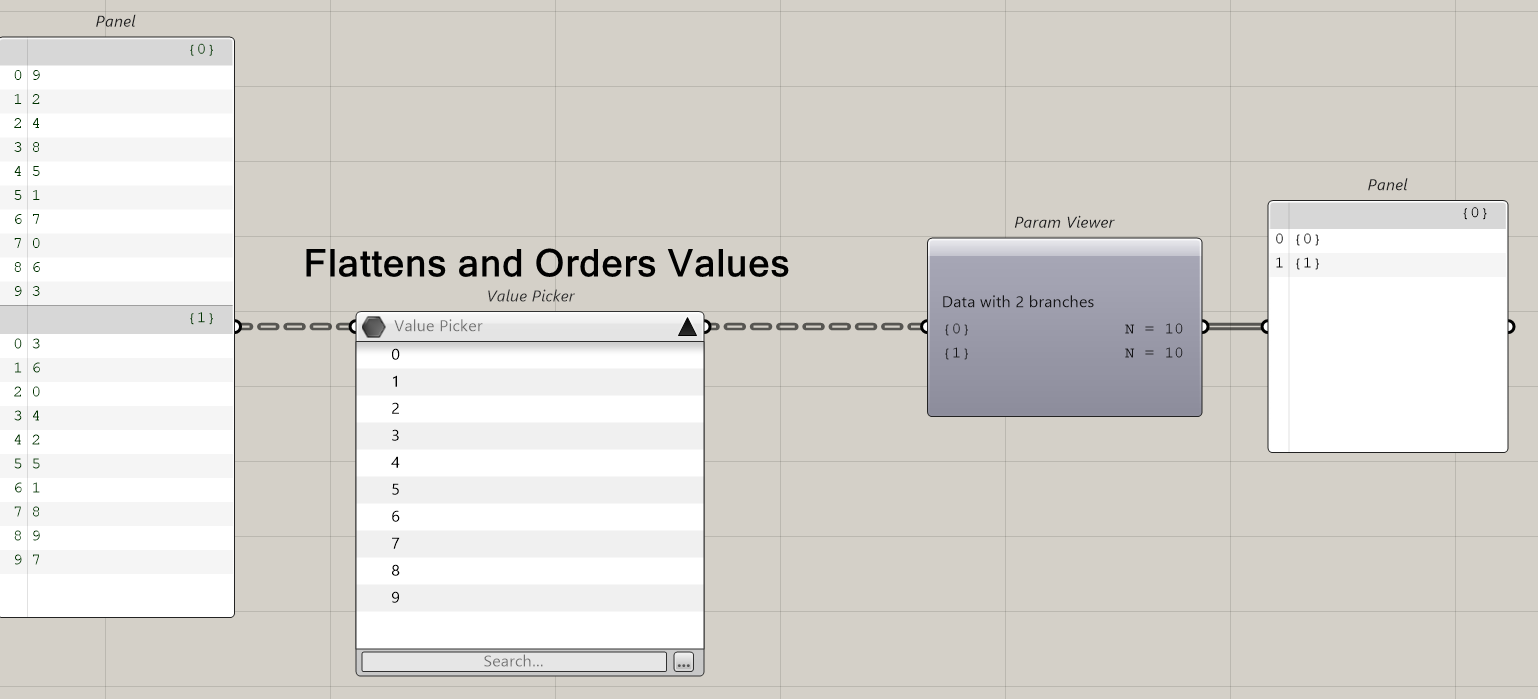
Working with Data Trees

Default:

Default Output:

Notable User Options:

Working with Object Types / Model Objects

The Value picker handles various object types simultaneously.

The various search options work on these objects as Text.

Note that the Model Objects are represented in the Value Picker by the Object Name.

3 Likes

So for how long is this value picker component available / visible in Rhino 9 WIP already?

The primary issue before announcing is its persistent settings, currently when the component is copied or reopening the file it forgets.

1 Like

I don’t see that but when I change the input data type, the value picker raises an error.

value_picker.gh (16.5 KB)

It is sensitive to data types, perhaps too much. I’ve made the post public and will move these posts into the thread to get additional feedback.

3 Likes

Hi Japhy. This thing is great, tested already here.

Can you, please, add the option for the panel to extend to the length of the list?

Hi Piotr,

After you search the list will be reduced (in default mode). Are you looking for an option for the entire list to be visible at that point, vs dragging down the bottom of the dialog?

Yep, something like that. Kind of auto adjustment to the list length. It could help to see, at first glance, with how many items I am dealing with. Or, maybe, list length displayed at the upper right corner (just thinking out loud).

1 Like

In the first post Japhy said “…from a LONG list of values”. I presume he means a list potentially far longer than can be displayed on any screen. How would you handle that?

I said ‘an option’, not by default, you can choose your preferences.

Correct, here is a search on a list of 10k values

One of my first applications for this will be to reference hardware parts I have saved in a folder.

The file path is too long and for my purpose it would be nice if the value picker would ignore the file path which is used in the query directory component. Or in other words the value picker component would benefit from an option to display just the file name and extension instead of a full file path.

Maybe in the Layout options besides ‘List’ and ‘Details’ we could have a ‘Compact’ option?

1 Like

Some prep before entering the value picker is required in certain workflows. The cleaner output from the file path might need to come from that component.

That works.

But I think you get my idea…

The value picker would display just the file name and not the path but then still output the path.

This is how I’m filtering at the moment:

I think that would require a File Path Data Type, where the picker would know ‘hey this is a path, only show the file name’. In the query directory component we know that Files is always going to be a path.

another output of Query Directory could be just the name

Maybe all that is needed is some smart ignorance.

What rule is applied to display the content when the panel/component width is reduced?


I think file paths could always be split at backslashes instead of splitting somewhere sort of randomly within the filepath. This is how I would expect the file paths to be displayed when the file path is longer than what can be shown:

C:\Users\user\OneDrive - work AG\Documents\hardware\washer_m6_10.8x1.5.3dm
...\user\OneDrive - work AG\Documents\hardware\washer_m6_10.8x1.5.3dm
...\OneDrive - work AG\Documents\hardware\washer_m6_10.8x1.5.3dm
...\Documents\hardware\washer_m6_10.8x1.5.3dm
...\hardware\washer_m6_10.8x1.5.3dm
...\washer_m6_10.8x1.5.3dm

With or without C: at the beginning I don’t care.

But the way it is now is difficult to read. Not all file names are shown with the same depth.

Instead of show as much as possible I think it would be better to clip the file all file names like the shortest file name is clipped. In the above screenshot that would mean that \Documents is not shown.

2 Likes

Very nice. I would add an option to select multiple items from the dialog box. Also a selection by index would be a time saver, especially when combined with a search. Same for multiple search queries and search intersections with logical operations

*7 OR ?5 #finds all items ending in 7 and all two character items ending in 5

*Apple* AND ing$ #finds all values containing apple with verbs eg. Apple picking

A more useful example would be *FolderA* OR *FolderB* AND NOT .3dmbak$ find all items in FolderA or FolderB but not with extension .3dmbak