New Components for Grouping, Sorting, and Filtering Objects
Edit: Some changes have been made to the way the Filtering components behave. To see the latest features, please review this post after reading through the tutorial below.
Have you ever wanted more granular control over the data or objects inside of Grasshopper? For example, have you ever wanted to select only the objects in your model that have a particular material applied to them (ie. glass)? Or maybe you wanted to remove all surfaces in your model that were on a specific layer and whose area was smaller than a certain value. Could you do it (easily)?
Grasshopper 1 for Rhino 8 WIP now has new components which will help you manage your data more effectively.
To explain how these new components work, it is best to start with a simple example. In this massing model there are BREPs representing the outside envelope of the buildings and surfaces which serve as the floors. The objects have been placed on different layers and have been assigned different colors based on their use type (ie. office, residential, etc.).

Most of the objects also have some meta data attached to them as user text entries.

Let’s begin this tutorial by figuring out the overall area of each building in our massing model. Generally speaking, there are three building masses in our model. Each of the floor plates have a Building ID number assigned to them as a user text entry.

Grouping By Attribute
To find the overall square footage of the floors, we need to first reference all of the floors in our Rhino model into our Grasshopper definition. This tutorial is all about filtering data - since we organized our model by layers, we can filter for the floors by using the Layer input of the Query Model Objects component. By using the “*” wildcard after the word Floors, it will select all the objects on the Floors sub-layers.
Next, we need to group each of the floor plates using the Building ID as our grouping criteria. Let’s use a Group By Attribute component and connect the output of the Query Model Objects component to the Content input.
This component uses the Key input to determine how to group content into different data tree branches. You can right-click the Group By Attribute component and choose whether you want the Key to be an attribute of the input data type, such as a layer name, a type of material, or a display color for example, or if you’d rather use a user text value.
In this case we want to group the objects based on the Building ID user text value, so we need to right-click on the component and select “By User Text Key”. Now when we right-click on the Key input we can select one of the available user text keys as our grouping criteria. In this case, we can select the Building ID node in the tree view.
Looking at the Content output, all of the floors have now been separated into different branches according to the Building ID number. The Values output returns a list of all the unique key values that it found in the content. In this case we see a list of three values (3, 1, and 2). You’ll notice that the values are not sorted. To sort the values, we’ll need to add a second component to our definition - Order By Attribute.

Ordering By Attribute
The Order By Attribute component is very similar to the Group By Attribute component in that it uses a Key to do something to (ie. sorting) the incoming list of content. And just like the Group By Attribute component, you can right-click on the component to determine if you want the Key to be a data type attribute or a user text key.
To sort by Building ID we need to right click on the Order By Content component and select “By User Text Key” and then select the Building ID node in the Key tree view. Now the content will be sorted, and we can then group the floors onto different branches using the Group By Attribute component.

The last step in this process is to add up all the area on each branch of our data tree. Since all of our floor surfaces are now separated into different branches, it’s quite easy to pass the output of the Group By Attribute component into an Area component and then add all of those values together using a Mass Addition component.

From the Grasshopper definition above, we can determine that:
- Building 1 = 43,622 sf
- Building 2 = 36,626 sf
- Building 3 = 5,736 sf
Filtering Content By Rule
In addition to Grouping and Sorting, we also can filter content based on whether a certain condition is met (ie. rule). Typically, a rule will compare one object to another and return a Boolean value (ie. True or False). Think, is x equal to y? or is x greater than or equal to y? We can also combine those rules into more complex expressions using operators.
So, let’s take our existing model and create a rule which will filter out only the office floor surfaces whose area is larger than 2,250sf but smaller than 2,500sf.
Before we begin, let’s add a new user text entry which will contain a formula to calculate the area of each floor plate. The formula is dynamic and will update whenever the floor plate object is changed. To create the proper formula, we’ll use the Text Fields Expression component.
The default formula for this component is set to Area, but you can right-click on it to have it generate different types of expressions. Don’t forget to right-click on the Units input and set the value to Feet. Finally, let’s add a Bake Content component at the end of our definition to add the user text entry to each of the objects.


Let’s start by adding a Filter By Rule component to the canvas. Just like in the Group By Attribute and Order By Attribute, we have the option to use a data type attribute or a user text key as our filtering value. We know that all the floor plates have a user text entry called “Use Type” and that some of them (the red ones) have a value of “Office”.
So, let’s start by right-clicking on the Filter By Rule component and selecting “By User Text Key”. Now, right-click on the Key input and select the Use Type node from the tree view.
Next, we need to define a rule that compares the Key we just defined (ie. Use Type) and compares each value to the word “Office”. If those values are equal, then the object will be included in our list. So, let’s create an Equality rule and set the input value to “Office”.
The result of our first filtering rule is a set of 10 surfaces each of which describe a floor plate in the Office tower.

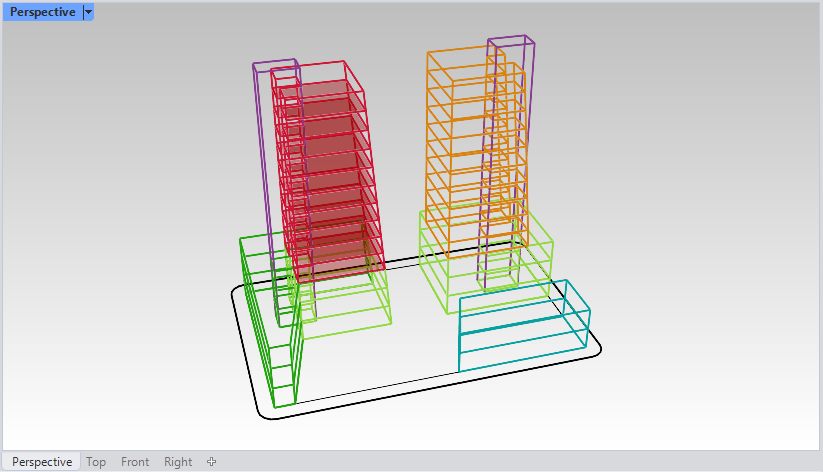
Next, we need to further reduce this list by filtering objects that are larger than 2,250sf and smaller than 2,500sf. To do this, we need to create two separate rules (x > 2,250) and (x < 2,500) which we can combine using the AND operator.
We also need to add a second Filter By Rule component and set it’s key to use the Area value we created a few steps above.
In the end, the result of our compound expression leaves us with 5 office floor plates, each of which are larger than 2,250sf and less than 2,500sf.


There is a lot that can be done with the techniques presented above, yet it’s difficult to describe all of the features in this format. For additional information, please check out this post on the topic.


 :
:
