In the Rhino BETA, we’ve added transparency color and refraction support in the Rendered display mode.
What Is This Feature?
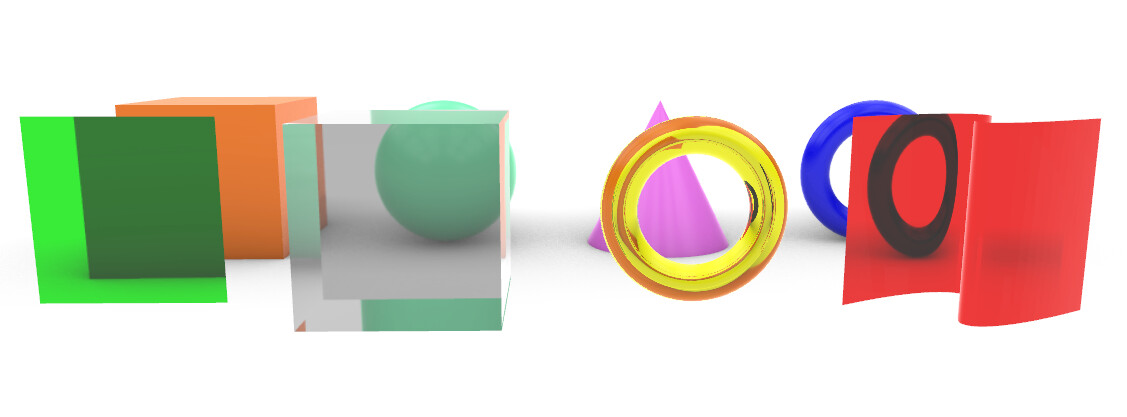
This feature makes transparent objects properly show their color in Rendered mode. Transparent objects now also bend light for a more realistic effect.
Why Transparency Color And Refraction?
Transparency and refraction are supported in Raytraced mode or in the built-in Renderer. However, final Render images can take time to calculate, making it hard to iterate and make adjustments on the fly.
Rendered mode is great as a quick visualization tool. However, transparent objects didn’t look or behave realistically, making it harder to anticipate how they would appear in the final Render. The difference is especially striking when visualizing gemstones, where realism truly matters.
How It Works
You should not need to do anything differently from before. Simply enter Rendered mode and ensure a transparent object is visible in the viewport. The Glass or Gem materials from the Materials panel will have default IOR (index of refraction) values for this display feature to utilize.
This works on both Windows and Mac, and on Windows in both the OpenGL and Direct3D display pipelines.
More information
This feature ensures that transparent objects properly display their colors in Rendered mode. For example, a red, transparent object now actually appears red in the viewport and properly filters its color based on whatever color is seen through it.
In addition, Rhino BETA supports screen-space refraction. This effect approximates the bending of light through materials based on their index of refraction (e.g., glass, diamond, or water).
The refraction algorithm was reworked during the BETA. Thin planar objects such as window panes refract correctly now, thicker glass no longer reads as a solid block of ice, and glass no longer shows the self-reflection artifacts it used to. Quality also holds up while you tumble the view rather than dropping to a rougher approximation.
Keep in mind that screen-space refraction is still an approximation of the effect, and if you want the real deal, switch to Raytraced mode or the Render command.

Refracting clear diamond and a ruby
Try It
- Download the Rhino BETA for Windows or Mac.
- Download and open a model with glass or gem materials in it — there is a ready-made one in the Try It section of the Transparency feature page.
- Double-click the Perspective viewport title to maximize the view.
- Click the dropdown arrow on Perspective and select Rendered. The glass objects will appear transparent, colored, and refracting.
- Tumble the view to see the effect update interactively.
Current known limitations
- Rendered mode slows down the more transparent objects are in the scene.
- Clarity — frosted or blurred transparency — is not supported by screen-space refraction. Use Raytraced mode or Render for that.
- Transparent objects sitting next to or partially occluded by opaque objects can still show occasional artifacts, though the sorting that caused color transparency to drop out at certain camera angles has been fixed.
Download the Rhino BETA and Try It Out!


