Rhino BETA Feature: New GH1 Components for Texture Mapping

The Rhino BETA now contains texture mapping components. This makes it possible to create, assign and edit the texture mapping properties of objects with Grasshopper.

This feature adds to the collection of tools available to Create and Manage Rhino Objects in Grasshopper. For those that would like to automate Rhino objects from Grasshopper.
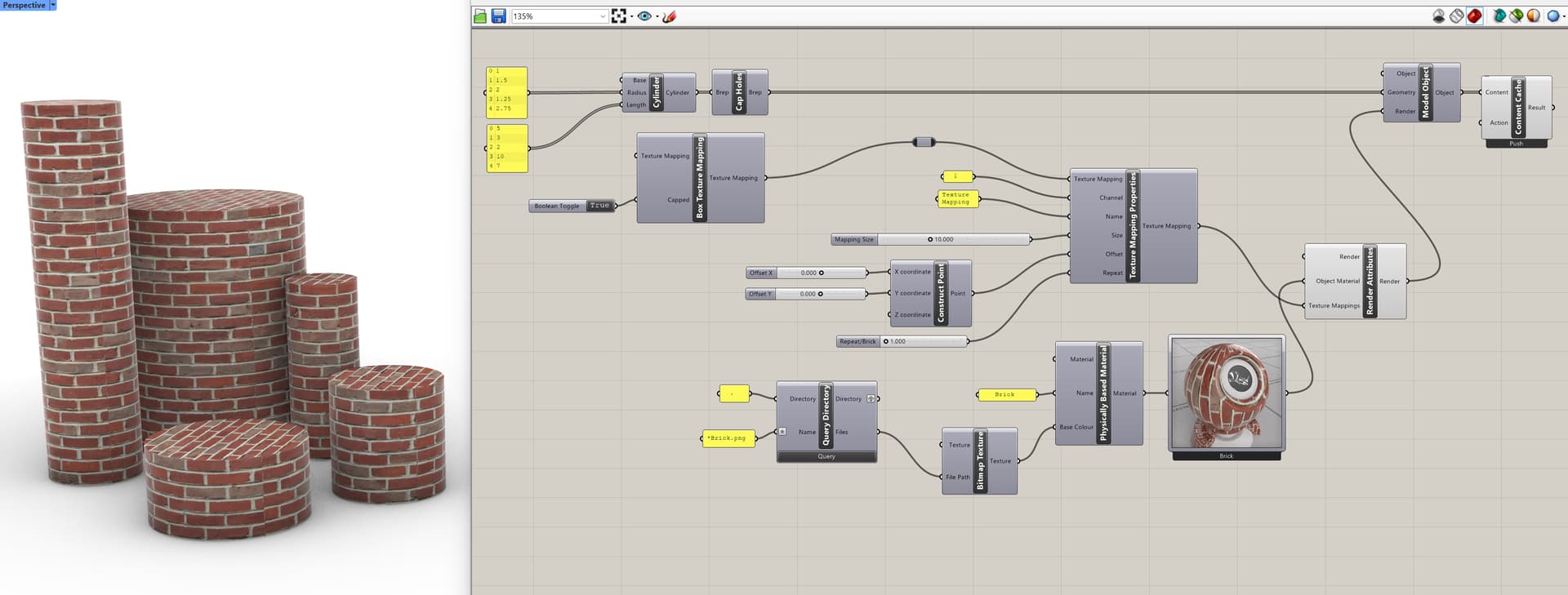
These new components are now feature complete in the Rhino BETA, though they’re still getting polish — please report anything that looks off. The Rhino BETA is available to anyone that owns Rhino 8.

Why Texture Mapping in Grasshopper?

Vary the mapping of many objects from a single definition. Assign a mapping method to every object in a stream and then let the definition adjust each one — rotate each widget by a different amount, drive the size from a parameter — and repetitive forms come out visually distinct with no manual editing. For instance, in the Try It example linked below, a UVW mapping is assigned to each piece of a column and rotated around its own centroid, so the base and shaft read as if carved from separate blocks of marble. The same definition holds whether you push two objects or two hundred.

Texture Mapping Components

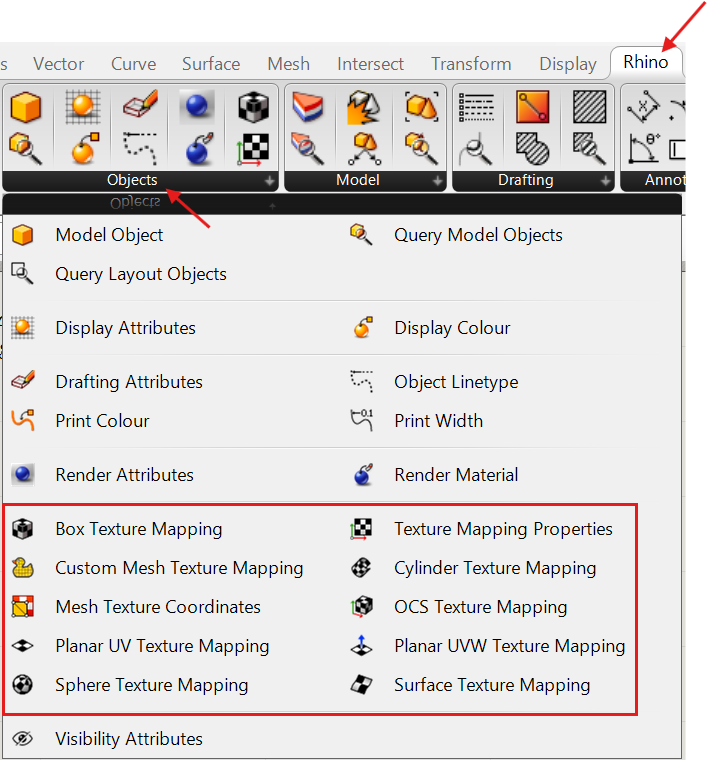
The Rhino tab > Objects section, contains the texture mapping methods that can be used for either referenced geometry or for objects created within Grasshopper.
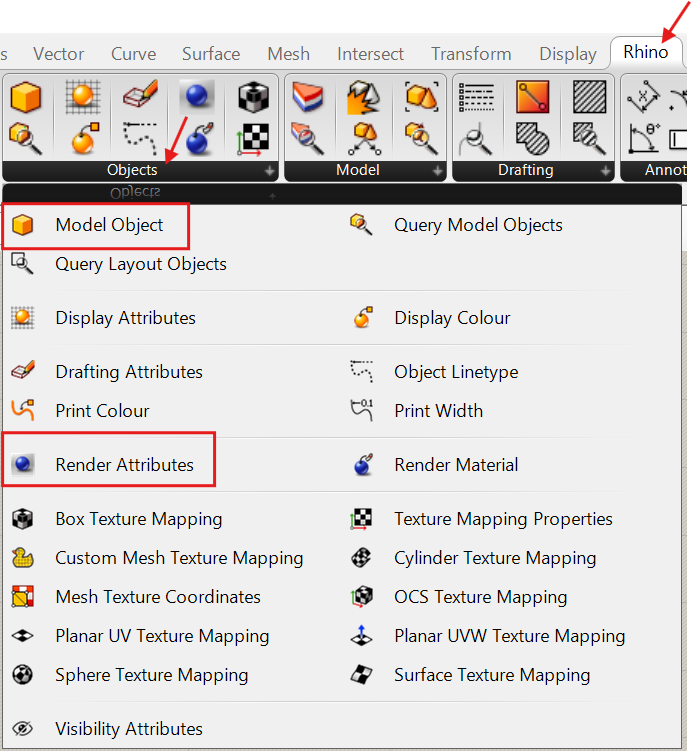
In this same section, the Model Object and Render Attributes components are used to define and change the object properties in the Rhino document as content is pushed to it from Grasshopper.
The Rhino tab > Materials section, contains components for procedural or bitmap textures that can be used within a material assigned in Grasshopper. Both the texture and the material are pushed to the Rhino document along with the associated objects.

The Params tab > Utility section, provides a Content Viewer component for viewing a preview of the material or texture created in Grasshopper.

In the Rhino tab > Content section, the Content Cache component is used to Push or Bake objects, materials and textures to the Rhino document. This can be set as an automatic action or manually triggered. The Query Directory component is also found here to help in the location and import of texture map files by name.

Note that pushing content is currently the only way to see the mapping result in a viewport. Custom Preview takes geometry rather than the model object that carries the mapping information, so it won’t show the mapping. This is a known issue and may be handled in the future.

Download and extract the attached zip folder to find these components combined in the simple Grasshopper example seen below. Note that any of these new components can be set to hide or show unused parameters via the right click menu over the center of each component.

GH_Texture_Mapping_sample_Rhino_9_WIP.zip (1.4 MB)

For the full walkthrough of the column example described above, see the Try It section of the Texture Mapping feature page. It opens up the cluster doing the work and shows how the mapping stays unique per object as you change the column count, swap the target curve and push again.

Also New for Texture Mapping in Rhino 9

  • Model objects that carry a texture mapping now pass that mapping into block instance definitions when baked.
  • Mapping pushed from Grasshopper now displays consistently with Rhino — no need to type into the Name input to force the correct orientation.
  • Cylindrical Texture Mapping now matches the cylinder you define instead of coming out offset.
  • In Rhino’s Properties > Texture Mapping panel, the Rotation and Size XYZ sections are hidden when the mapping type is Surface, since those values had no effect there.

See Also:

This is a very long-awaited addition to Grasshopper!
It has always been a problem that geometry from Grasshopper could not be regenerated losslessly because some features (like texture mapping) were lost, or some texturing tasks were far too laborious for editing many elements. This has started to change in Rhino 8, thank you very much for your continued work in this category. The Rhino Tab in Grasshopper is of great value, and I can’t imagine working in Rhino 7 anymore. After growing pains of Rhino 8, Rhino 9 looks really promising.

Having extensively used Human’s texture mapping components and sort of maxing out their capabilities I am so happy to have more options there. I am presuming these will work just as well for Shapediver as Human’s components did, which is super helpful, because you don’t really have any other way of adjusting textures in the Shapediver viewer except for Grasshopper nodes.

Can’t wait to play with them!

The texture mapping components compliment the Grasshopper Rhino Material Components in Rhino 9 WIP.

Hi Brian, I’m not using textures and materials a lot much so every time is a bit of a struggle.

Can the texture with the correct mapping be viewed with without baking?

Content Cache (use Push action and it updates) is the only way to see the texture mapping results currently. Custom Preview only takes geometry not the model object with that info. This may get handled in the future and it’s a known issue.