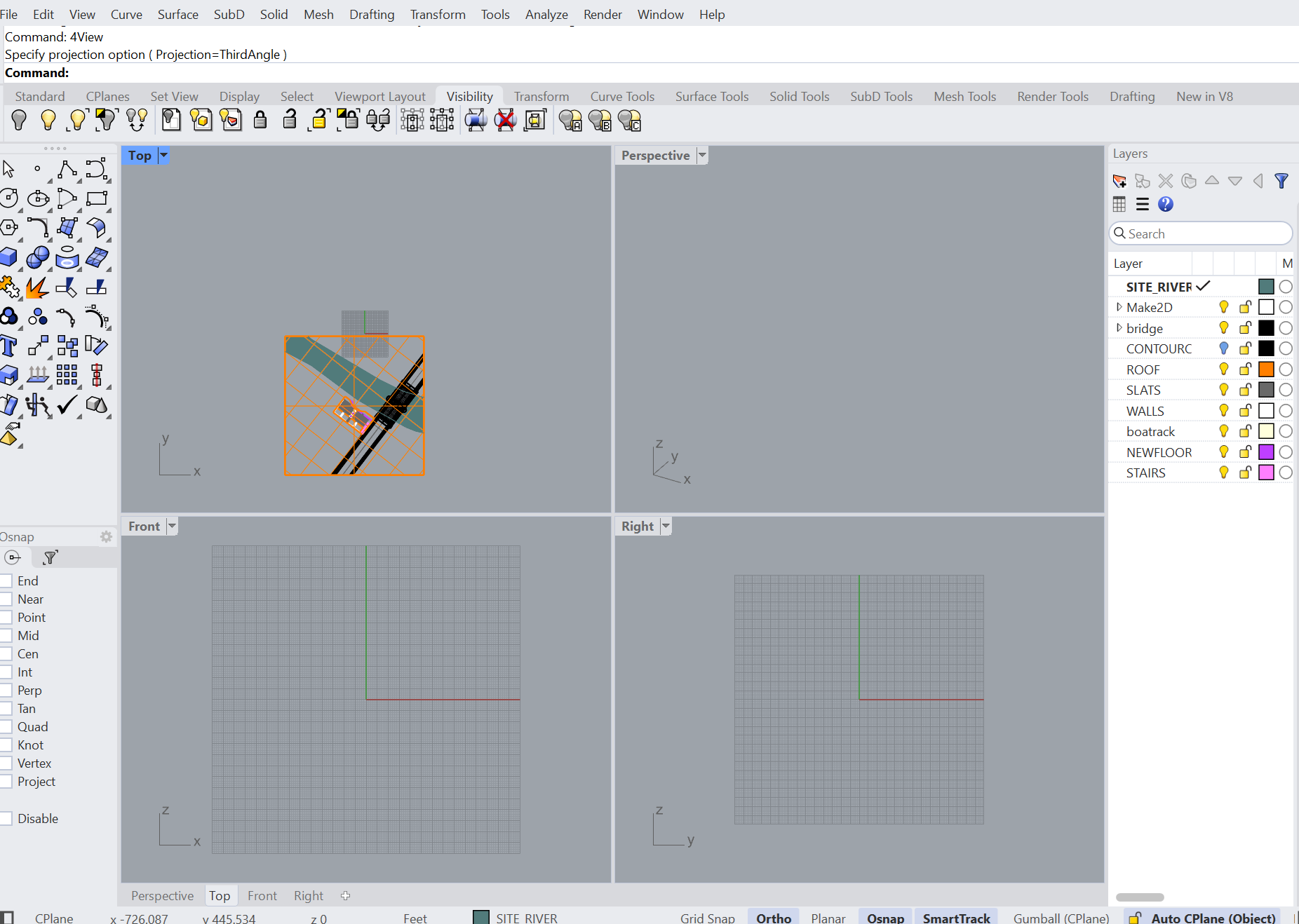
Object only visible in Top view; disappears in all other views including Perspective. Grid missing in Perspective viewport.
Description:
I have an object positioned near the origin that is fully visible in the Top view. However, in all other views (Perspective, Front, Right), the object disappears when I zoom or pan. The Perspective viewport also does not show the origin grid.
The object is not flat (it has volume).
I moved the object to the origin to test.
Switching display modes (Wireframe, Shaded) doesn’t resolve the issue.
I reset all viewports using _4View and zoomed to extents.
Exporting the object to a new file did not fix the problem.
Attempted camera clipping plane resets using Rhino Python scripts (near/far plane distances) but encountered errors or no effect.
The grid does not show in Perspective view even after resetting views.
I tried creating a new Perspective viewport, but the issue persists.
I suspect a viewport or camera clipping problem but have been unable to fix it.
Perhaps you accidentally turned off the grid with a hotkey I think it’s F7?
Try running 4view twice in a row sometimes Rhino needs that.
Is your object huge perhaps the grid is there but just to small to see?
Do you have universal cplanes on?
Check your grid settings in options is the grid set to active view or all views is it too small or too large?
Post your file or an image it’s hard to tell without more information.
I’m not sure what “unknown result” means. When there are bad objects, those get selected and reported on the command line, when there are none, that is stated on the command line.
When I check for distance from the world origin, I get this:
Command: Distance
CPlane angles and deltas: xy = -66.425 elevation = -90.000 dx = 178.378 dy = -408.787 dz = -756864974828985.375
World angles and deltas: xy = -66.425 elevation = -90.000 dx = 178.378 dy = -408.787 dz = -756864974828985.375
Distance = 756864974828985.375 feet
1 hatch, 6 block instances, 27 curves, 1 surface, 30 polysurfaces, 61 extrusions added to selection.
When I select everything and move that to the world origin:
Command: _Move
The “Move” command created 26 bad objects.
Command: ZEA
Command: '_Zoom
Drag a window to zoom ( All Dynamic Extents Factor In Out Selected Target 1To1 )_All
Choose option ( Extents Selected 1To1 )_Extents
This is all good advice. I just want to warn the user and others that 0 is not “world 0” if you have set your cplane to another location. Which is perhaps what happened to the user here. When moving to world 0 you must preface it with the w prefix, w0,0,0 not 0,0,0 or make sure you are in a viewport that has a cplane set to world 0,0,0 then both cplane and world are in the same location but be careful on using plain 0,0,0 to locate to w0,0,0
RM