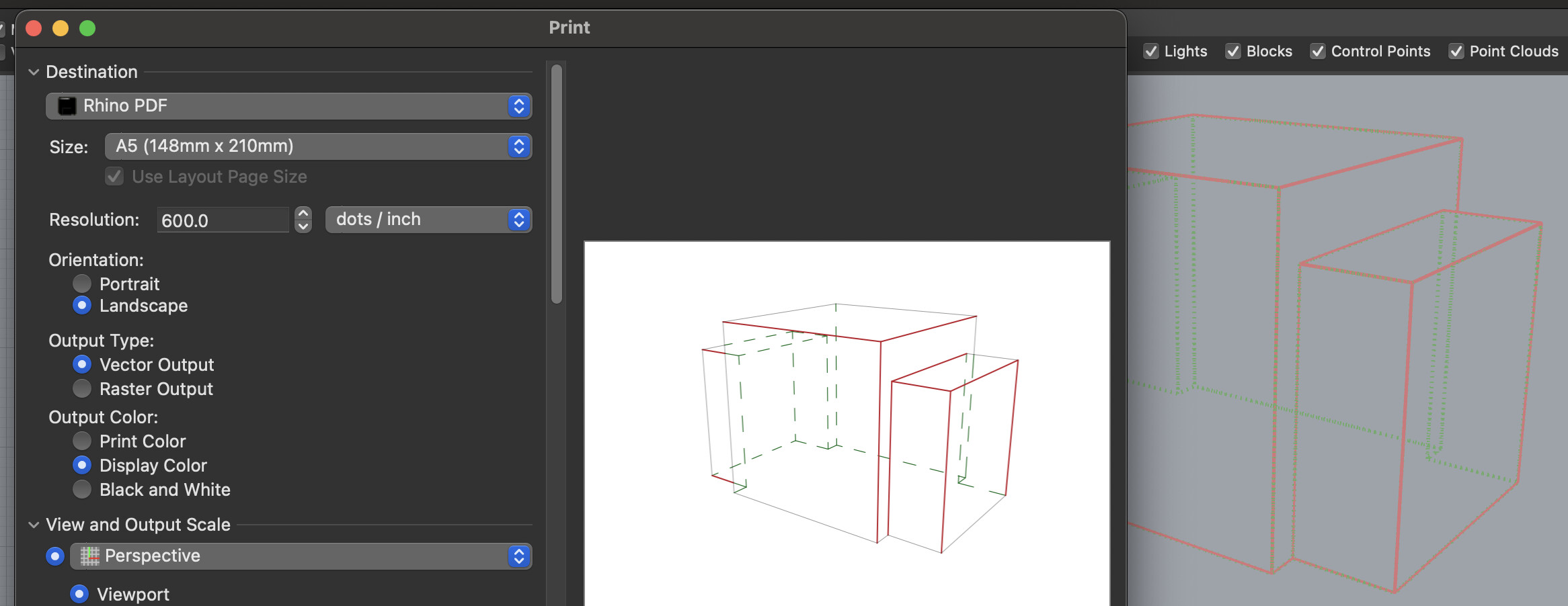
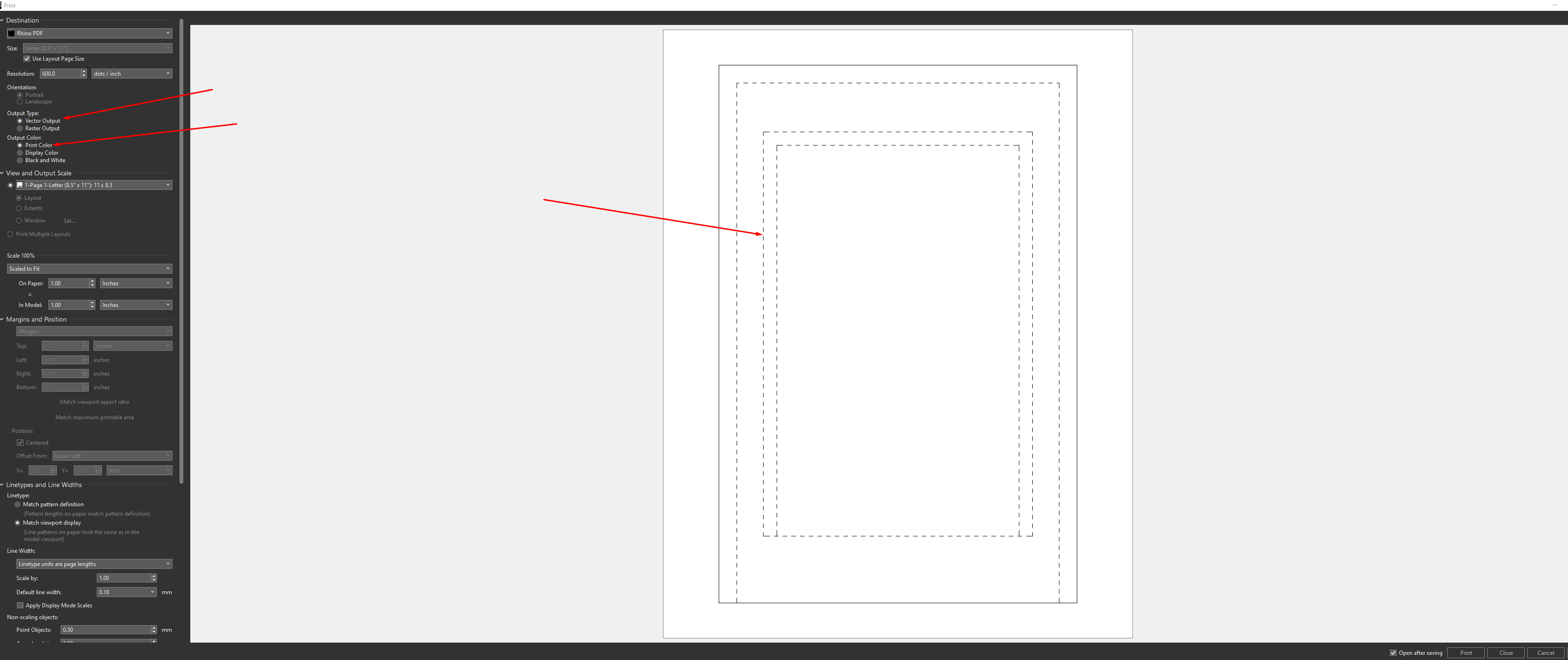
I’ve been having trouble getting some technical views on my layouts to print the hidden lines correctly. It appears fine in the layout view, but when printing, the scale of the dashed/hidden lines is completely different. I’ve tried playing around with the “Linetype and Line Widths” settings in the print dialogue for printing as a Rhino PDF, but there has been no change at all. Printing as a raster fixes the issue, but I lose the benefits of a vector drawing, and I would prefer to print everything as a vector PDF.
The problem is the same with dashed lines. However, I can turn off “Use Model Units” in the line type settings so the dashed lines print correctly as a vector. Because there is currently no feature to select a line type for the technical view to use for hidden lines (you only get the default line type), I can’t solve the problem by changing the hidden line type to a kind with “Use Model Units” off. Additionally, I want to avoid using make2d to fix this problem, and I would prefer to be able to extract this information from the 3d model.
I can get what I’m looking for by using clipping sections with “Background” and “AddHidden” turned on since I can control the line type in the layers panel, but it would still be nice to have some way to do it within the technical display mode. Any help sorting this out is greatly appreciated.
I’ve attached my 3dm, screenshots, and PDFs of what I’m referencing here. The problem occurs everywhere I try to print the technical view. For this example, the callout detail I drew has this problem.
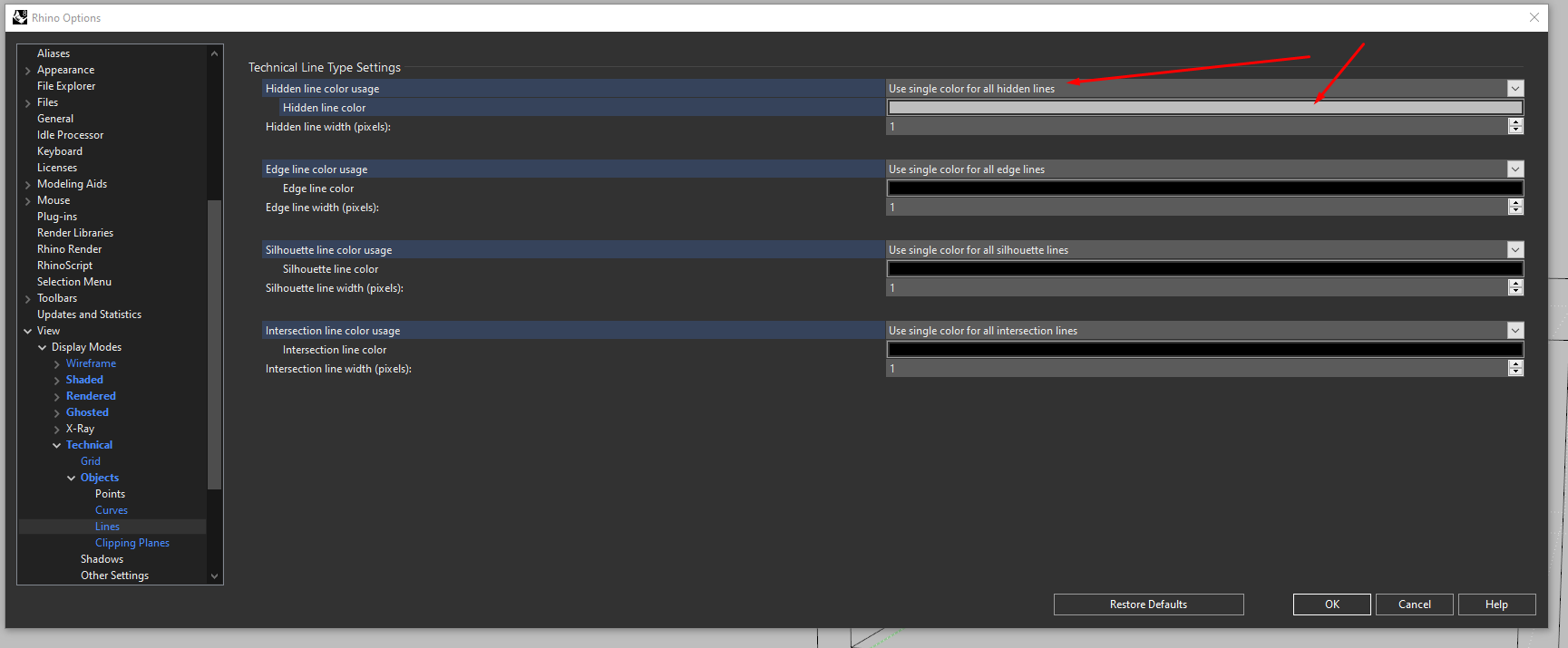
Additionally, is there any way to control the color of printed vector hidden lines? In previous R8 releases (8.10.24228.13001), this was possible by changing this setting:
Windows 10 (10.0.19044 SR0.0) or greater (Physical RAM: 32GB)
.NET 7.0.20
Computer platform: LAPTOP - Plugged in [93% battery remaining]
Non-hybrid graphics configuration.
Primary display and OpenGL: NVIDIA Quadro RTX 3000 (NVidia) Memory: 6GB, Driver date: 1-18-2024 (M-D-Y). OpenGL Ver: 4.6.0 NVIDIA 551.23
> Integrated accelerated graphics device with 4 adapter port(s)
- Windows Main Display is laptop’s integrated screen or built-in port
- Secondary monitor attached to adapter port #1
- Secondary monitor attached to adapter port #2
Primary OpenGL: NVIDIA Quadro RTX 3000 (NVidia) Memory: 6GB, Driver date: 1-18-2024 (M-D-Y). OpenGL Ver: 4.6.0 NVIDIA 551.23
> Integrated accelerated graphics device with 4 adapter port(s)
- Windows Main Display is laptop’s integrated screen or built-in port
- Secondary monitor attached to adapter port #1
- Secondary monitor attached to adapter port #2
Secondary graphics devices.
Intel(R) UHD Graphics (Intel) Memory: 1GB, Driver date: 5-5-2020 (M-D-Y).
> Integrated graphics device with 3 adapter port(s)
- There are no monitors attached to this device. Laptop lid is probably closed
OpenGL Settings
Safe mode: Off
Use accelerated hardware modes: On
GPU Tessellation is: On
Redraw scene when viewports are exposed: On
Graphics level being used: OpenGL 4.6 (primary GPU’s maximum)
Anti-alias mode: 8x
Mip Map Filtering: Linear
Anisotropic Filtering Mode: High
Vendor Name: NVIDIA Corporation
Render version: 4.6
Shading Language: 4.60 NVIDIA
Driver Date: 1-18-2024
Driver Version: 31.0.15.5123
Maximum Texture size: 32768 x 32768
Z-Buffer depth: 24 bits
Maximum Viewport size: 32768 x 32768
Total Video Memory: 6 GB
Rhino plugins that do not ship with Rhino
C:\Users\sserna\AppData\Roaming\McNeel\Rhinoceros\packages\8.0\Synapse\0.5.0\SynapseRCP.rhp “SynapseRCP” 0.5.0.0
And just to make sure, could you save your Technical display mode as a custom mode and export that? In addition, a simple file that shows the behavior is probably also good to have.
-wim
I noticed that you have your Output Color set as “Display Color,” whereas the functionality should also be in “Print Color”. In my workflow, I use bright colors for layer color coding, but I only print in black linework and use limited greys to reduce the busyness of the drawing:
I don’t mess much with print colors so I’m probably just not seeing something… In the file that you posted, there are two objects and a detail. All are on the “Default” layer that has its print color set to black and none of the objects have individual overrides. Given this, where does the difference in print color in raster come from?
-wim
I understand. It seems I’m relying too much on a bug. Perhaps I need to rephrase my initial question: Is there a way to independently change the print color of hidden lines, similar to how you did in “display color”?
i agree with Toni and Santiago - there would be geat to have choices for custom type of hidden lines and for custom print color of hidden line. - Would be possible?