I just installed the new Rhino 9 Beta and tried the new “Concept” display mode. However, I noticed that it messes up something with the environment maps, and sometimes the shadows and exposure, when using a specific previous display mode.
For example, switching from “Arctic” to “Concept” makes the shading of the latter slightly darker. It remains that way while the view is static. The shading resets to the normal state of “Concept” only when the view is moved/rotated/panned.
Likewise, switching from “Shaded” to “Concept” applies a shiny plastic or paint environment map to the objects.
Edit:
After testing the “Concept” display mode with a few other of my old files (made in Rhino 7), I experienced a couple of crashes, as well as super long freezing with an inability to cancel the calculations via the Esc key.
Also, one of my files with a car with applied materials caused various graphics bugs, such like sudden change of the colour every few frames. From blue to red, to yellow, to black, to white, to gray, to orange, to green, etc…
There are some display bug with the shadows that appear in random shape based on the camera orientation. The objects also become semi-transparent at some moments. Note that this particular bug happens on grouped car door whose window is semi-transparent. If I ungroup the door objects and hide the window, the door panel no longer gets semi-transparent.
Hi @Rhino_Bulgaria - I can’t repro these issues. I tried with various models, switching from Arctic and others back to Concept, but I don’t see it. This seems like a graphic card thing. Also, are you on OpenGl or Direct3D?
Hi @Vanessa , I’m using the latest Rhino 9 Beta installed yesterday, and latest Nvidia drivers, too. I typically use OpenGL, but the visual bug still remains when I switch to DirectX. Note that in my video above I use several custom display modes. Also, if you take a closer look when I switch from “Arctic” to “Concept”, and then I click somewhere in the viewport or just pan it slightly, there is a minor shift in brightness (the surfaces are slightly darker initially, then become lighter).
I have no idea what causes the bug, but the latest Rhino 9 WIP (that expired on 5th of July, just a couple of days ago, named rhino_9.0.26160.12305.exe) was working perfectly fine in this regard.
The directional arrows of the ! _ShowDir command are not visible in the “Concept” display mode.
Bug 2:
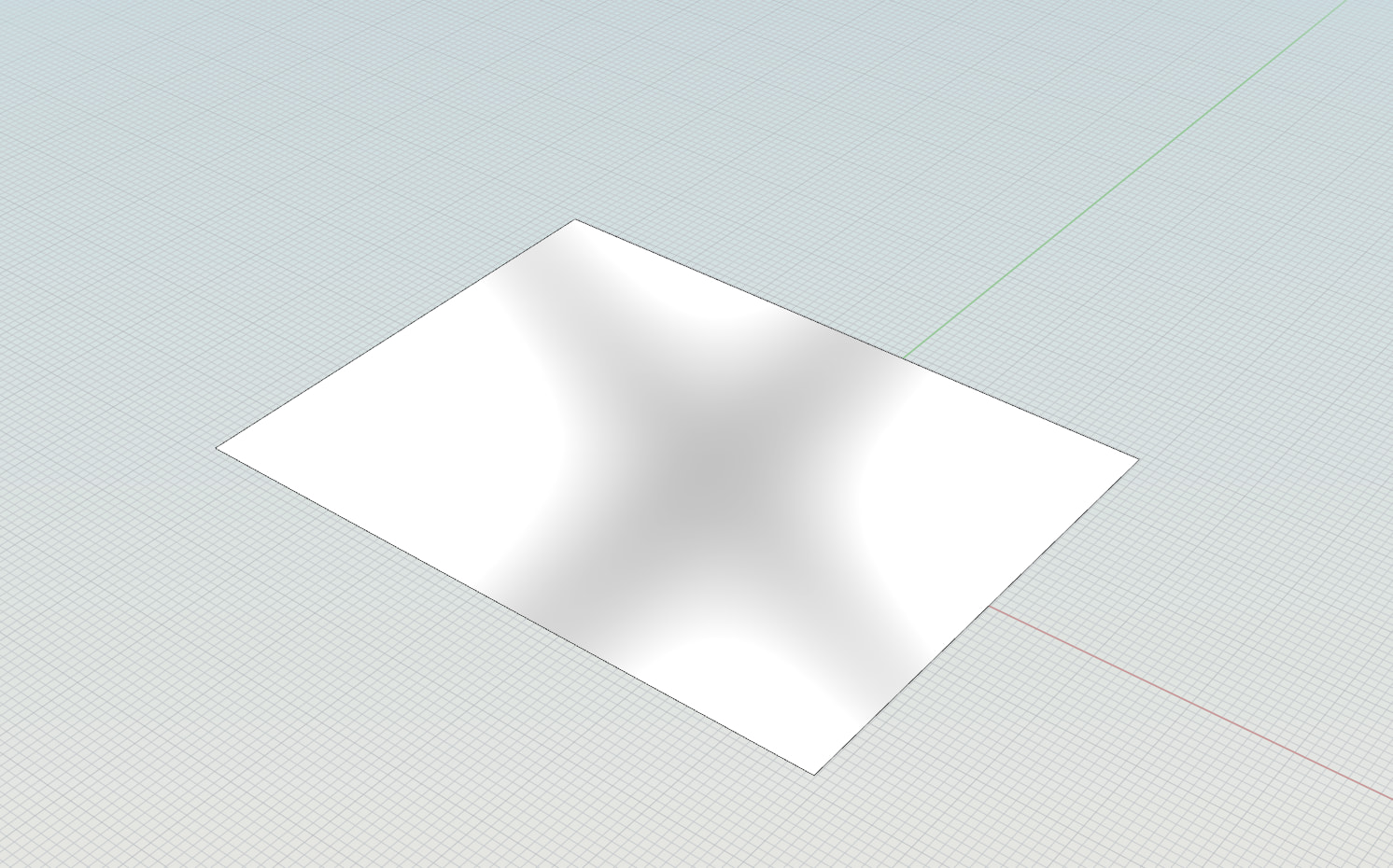
I just switched from “Wireframe” to “Concept” and this environment map appeared on the blank square surface. I didn’t used any material for this test. Perhaps it’s some of the Materials baked in Rhino’s library.
Sometimes, “Wireframe” refuses to render the NURBS geometry as a wireframe, thus it remains shaded. Also, on rare occasions a bright bar fills the upper portion of the viewport, as if it was an extension of the tab consisting the viewport name.
In this example, Rhino 9 Beta failed to switch from “Concept” to “Wireframe”. the upper half of the viewport switched to “Wireframe” mode, whereas the lower half remained in “Concept” mode. Both worked simultaneously unless I decided to pan the view. Only then the viewport switched completely to “Wireframe”. Also, there was a light blue bar at the top that should not be there.
There is a noticeable delay when I try to switch to my custom “Bobi X1” display mode. This was also true for the older versions of Rhino 9 WIP. No idea why this particular display mode takes so much time even on the simplest geometry, because the environment map is really simple - a basic black square… It was created in Rhino 7 and Rhino 7 is blazing fast with switching of the display modes.
Other custom display modes that use environment maps also exhibit some slight delay, and I noticed that they refresh faster if I pan the view a bit. If I don’t pan and wait, it takes a couple of seconds.
Also, when I try to customize the material for some display modes, Rhino freezes for many seconds…
Either make the preview of the selection highlight (the one that shows upon holding Ctrl+Shift) darker, or add a glow around the default white highlight colour. Currently, it’s nearly impossible to see the white highlight due to the bright background and default white colour of the surfaces.
I just updated my post above that consists various bug reports. I notice too many new bugs in the latest Rhino 9 Beta compared to Rhino 9 WIP that I had from 4 weeks ago…
@Rhino_Bulgaria so far I haven’t been able to reproduce any of the bugs you are encountering.
pls run _SystemInfo and post back the results. It might also be good to investigate your setup
Use the Export Options tool in Rhino 9 Beta to save the .rhs and send that for inspection.
Sure, here are the options and system information.
Rhino options for the Rhino 9 Beta (rhino_9.0.26181.12303) installed a couple of days ago: Settings_9_win 8_7_2026.rar (1.1 MB)
Just in case, I also include my older settings for Rhino 9 WIP (rhino_9.0.26160.12305) that I had still running until a few days ago: Settings_9_win 9_6_2026.rar (1.1 MB)
Windows 10 (10.0.19045 SR0.0) or greater (Physical RAM: 16GB)
.NET 10.0.2
Computer platform: DESKTOP
Standard graphics configuration using OpenGL
Primary display: NVIDIA GeForce GTX 1660 Ti (NVidia) Memory: 6GB, Driver date: 7-2-2026 (M-D-Y). OpenGL(4.6.0 NVIDIA 610.74)
> Accelerated graphics device with 4 adapter port(s)
- Windows Main Display attached to adapter port #0
OpenGL Settings
Safe mode: Off
Use accelerated hardware modes: On
GPU Tessellation is: On
Redraw scene when viewports are exposed: On
Graphics level being used: OpenGL 4.6 (primary GPU’s maximum)
Anti-alias mode: 4x
Mip Map Filtering: Linear
Anisotropic Filtering Mode: High
Vendor Name: NVIDIA Corporation
Render version: 4.6
Shading Language: 4.60 NVIDIA
Driver Date: 7-2-2026
Driver Version: 32.0.16.1074
Maximum Texture size: 32768 x 32768
Z-Buffer depth: 24 bits
Maximum Viewport size: 32768 x 32768
Total Video Memory: 6 GB
After the factory reset I no longer experience the aforementioned bugs related to the “Concept” display mode. However, after importing a couple of my display modes, I noticed that switching to them causes a small delay to load their environment map. Even if I put the environment maps on my SSD, there is still a noticeable lag. In comparison, Rhino 7 switches the custom display modes instantly, lag-free, even if the environment maps are on my HDD.
For some reason, its plain black environment map takes a couple of seconds to load even on the factory reset Rhino 9 Beta when I first switch to it after opening the program. The next times I switch to “Bobi X1” it’s instant. I guess that Rhino has some issues with reading the PNG file of the environment map. The display mode was created in Rhino 7 several years ago.
Other custom display modes also cause some delay when they are used for the first time. I showed that bug multiple times in various videos months ago when I reported it in other topics.
Switching between the default display modes in Rhino is nice. The delay only happens with custom display modes.
Years ago, I had an issue with some of my custom display modes made in Rhino 7 when I imported them into Rhino 8 Evaluation. At the time you made some fix and uploaded a new version that worked properly in Rhino 8. Perhaps there is some incompatibility between the display modes made in older Rhino version. Here is an example:
Works well in Rhino 7, but causes issues in Rhino 8: Bobi X14.ini (13.9 KB)
As for the “Concept” display mode, it will not show a thick outline around surfaces.
Also, when I make a copy of a box and move it aside so that both boxes are colliding together, the “Concept” display mode will not take this into account and continues to render thick edges where the boxes intersect together. In my opinion, the area of intersection should be either rendered with partial thinner edges, or Rhino should remove the intersected edges entirely as if this is a single joined object. The latter would help a lot with architectural projects. If you make a Boolean union you will see what I mean.
I don’t see any delay here currently. As for the X1 display mode, you might see if changing it to a single color texture makes a difference, or see if uncompressing the png makes a difference. Since I don’t see the issue here, the best I can do is guess.
How to uncompress the PNG? It’s a single black colour, the most basic image possible.
Also, how to change it to a single-colour texture? I’m not familiar with these modifications.
The lag occurs with every custom display mode when I switch to them for the first time after loading Rhino 9 Beta. However, the default display modes that ship with the program switch instantly.
Thanks for the tip. As for “Photoshop”, I don’t gave one, but I do have Paint.NET where I created the black environment map years ago. However, it saves a regular PNG, so I’m not sure if I can make the image uncompressed.
I just install the latest Rhino 9 Beta now and will try my custom display modes again in a few minutes.
I just installed the latest version of Rhino 9 Beta ((9.0.26188.13293, 2026-07-07)
Commercial), totally factory reset with zero customization and only consisting the default Rhino display modes. It took whole 58 minutes to install.
Here is what I get when I switch from “Wireframe” to “Concept” display mode on a basic rectangular surface:
This environment map is either part of some material in Rhino or included in a library with environment maps. I have no idea, but it’s part of Rhino’s installation files somewhere.