

there are two places for Preferences in Rhino for Mac
the one in your screenshot is the document settings at File->Settings
the other one for Rhino settings is at Rhino->Settings
Thank you, but I do not see a pull down menu titled “Rhino”. I only find the “Rhino 8” pulldown which takes me to “Preferences”.
yep, that’s the one:
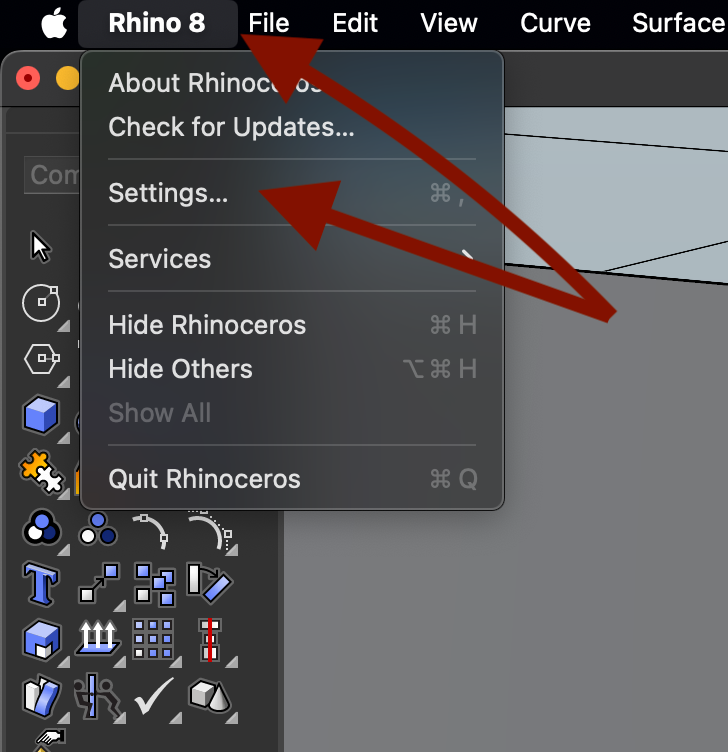
in the windows screenshot you posted, there are “Document Properties” and “Rhino Options”… On Mac, going Rhino->Settings will get you to the Rhino Options… going File->Settings will get you to the Document Properties.
That said, maybe you’re looking for a specific setting? As far as the unit settings go, the same options are showing in both of your screenshots, no?

Apple can’t make up their minds.
“Preferences” is the older name.
“Settings” is what newer MacOS versions call it.
BTW - On a Mac keyboard, the Delete key does the same thing as a Backspace in Windows, and the Windows “Ctrl” key is the Mac “command” key.

Sorry, I guess I wasn’t clear.
In Rhino for Windows, “Options” takes you to a combined “Rhino Options”, and “Document settings” tool.
In Rhino for Mac, they are split up:
- Rhino 8 > Preferences(Settings), takes you to “Rhino Settings”
- File > Settings, takes you to “Document settings”
This is a Rhino for Mac vs. Windows difference, not a V8 difference.
Since Mac V5, this is how the settings work.
@Bradley64
We replied with this last night.
Did it not work for you?
Model Units is part of Document settings:
File menu → Settings on the Mac


Is it working now?
Thanks,
Mary Ann Fugier

Hi @Bradley64,
Pick on Annotation styles and the Window will automatically resize and be bigger.
Your image is sized for Units.
Does that work for you?
Thanks.
Oh my gosh. It’s always something simple. Yes, that worked! Thank you so much!
Brad