Hello,
It seems VA or Rhino are drawing the wrong lines to be on top in a sectioned plan?
Meaning the clipped geometry lines are being drawn below the projected ones, at least that is my understanding.
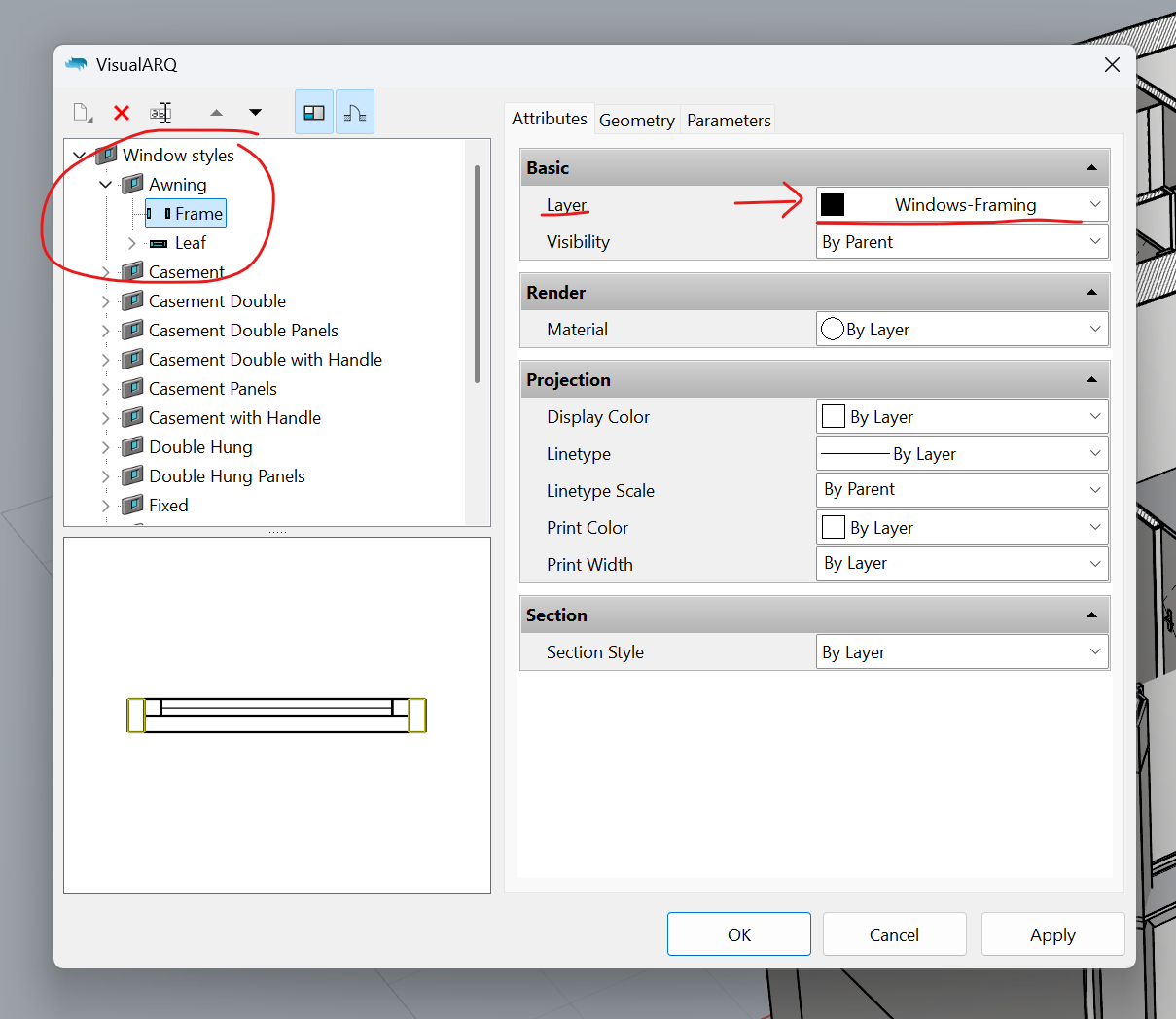
The problem at hand is the cut line of my mullions on my awning windows that are behind their gray lines (projected).
Any thoughts on this?

PrintDisplay “On” on layout shows correctly

PDF print, Vector at 600dpi results in confusing lines and draw orders. this happens for both plans and sections on my test.

Sharing the 3D model where you can see the problem.
Let me know if Im missing something here…
Thanks,
Lourenço
FILE HERE:
VA Draw Order Bug.3dm (4.2 MB)
Also, small comment. every time I paste a VA object to different file. if that file has the VA Standard layers inside a sub layer, and then object gets pasted into another empty va file, it just resets all the VA object attributes and moves them to the standard template VA layers, I have never heard of copying an object into another file and it not sticking to the same layer (the correct layer gets copied but its empty)?
System Info: Rhino 8 SR20 2025-6-3 (Rhino 8, 8.20.25154.13001, Git hash:master @ 9c56e48aaab3834802c90f657a77687be5693a6f)
License type: Educational, build 2025-06-03
License details: Cloud Zoo
Windows 11 (10.0.26100 SR0.0) or greater (Physical RAM: 16GB)
.NET 8.0.14
Computer platform: DESKTOP
Standard graphics configuration.
Primary display and OpenGL: NVIDIA GeForce RTX 3060 (NVidia) Memory: 12GB, Driver date: 4-12-2025 (M-D-Y). OpenGL Ver: 4.6.0 NVIDIA 576.02
> Accelerated graphics device with 4 adapter port(s)
- Windows Main Display attached to adapter port 0
OpenGL Settings
Safe mode: Off
Use accelerated hardware modes: On
GPU Tessellation is: On
Redraw scene when viewports are exposed: On
Graphics level being used: OpenGL 4.6 (primary GPU’s maximum)
Anti-alias mode: 4x
Mip Map Filtering: Linear
Anisotropic Filtering Mode: High
Vendor Name: NVIDIA Corporation
Render version: 4.6
Shading Language: 4.60 NVIDIA
Driver Date: 4-12-2025
Driver Version: 32.0.15.7602
Maximum Texture size: 32768 x 32768
Z-Buffer depth: 24 bits
Maximum Viewport size: 32768 x 32768
Total Video Memory: 12 GB
Rhino plugins that do not ship with Rhino
C:\Users\loure\AppData\Roaming\McNeel\Rhinoceros\8.0\Plug-ins\D5LiveSync (e0d5e210-02f6-4ee9-a2b0-1675e225d958)\D5Conv.rhp “D5 Live Sync for Rhino”
C:\ProgramData\McNeel\Rhinoceros\8.0\Plug-ins\Datasmith Rhino Exporter (d1fdc795-b334-4933-b680-088119cdc6bb)\DatasmithRhino8.rhp “Datasmith Exporter” 5.5.4.0
C:\Program Files\Rhino 8\Plug-ins\Tibidabo\VisualARQ.rhp “VisualARQ”
C:\Program Files\Rhino 8\Plug-ins\Tibidabo\Tibidabo.rhp “Tibidabo”
Rhino plugins that ship with Rhino
C:\Program Files\Rhino 8\Plug-ins\Commands.rhp “Commands” 8.20.25154.13001
C:\Program Files\Rhino 8\Plug-ins\WebBrowser.rhp “WebBrowser”
C:\Program Files\Rhino 8\Plug-ins\rdk.rhp “Renderer Development Kit”
C:\Program Files\Rhino 8\Plug-ins\RhinoScript.rhp “RhinoScript”
C:\Program Files\Rhino 8\Plug-ins\IdleProcessor.rhp “IdleProcessor”
C:\Program Files\Rhino 8\Plug-ins\RhinoRenderCycles.rhp “Rhino Render” 8.20.25154.13001
C:\Program Files\Rhino 8\Plug-ins\RhinoRender.rhp “Legacy Rhino Render”
C:\Program Files\Rhino 8\Plug-ins\rdk_etoui.rhp “RDK_EtoUI” 8.20.25154.13001
C:\Program Files\Rhino 8\Plug-ins\NamedSnapshots.rhp “Snapshots”
C:\Program Files\Rhino 8\Plug-ins\MeshCommands.rhp “MeshCommands” 8.20.25154.13001
C:\Program Files\Rhino 8\Plug-ins\IronPython\RhinoDLR_Python.rhp “IronPython” 8.20.25154.13001
C:\Program Files\Rhino 8\Plug-ins\RhinoCycles.rhp “RhinoCycles” 8.20.25154.13001
C:\Program Files\Rhino 8\Plug-ins\Grasshopper\GrasshopperPlugin.rhp “Grasshopper” 8.20.25154.13001
C:\Program Files\Rhino 8\System\netcore\export_PDF.rhp “PDF Export” 8.20.25154.13001
C:\Program Files\Rhino 8\Plug-ins\Toolbars\Toolbars.rhp “Toolbars” 8.20.25154.13001
C:\Program Files\Rhino 8\Plug-ins\3dxrhino.rhp “3Dconnexion 3D Mouse”
C:\Program Files\Rhino 8\Plug-ins\SectionTools.rhp “SectionTools”