I’m attempting to assign section styles to objects in blocks. I can’t seem to get consistent results. Is it a known issue?
It appears that in order to get section styles to register when they’re set on objects in a block, a project must be saved and reopened. Until that happens, changes won’t display.
No, that’s not a reliable fix. Maybe there isn’t one.
Trying anyway. Here’s a case where a section fill was created with section styles, and then the objects were moved. The fill displays when the clipping plane is enabled (often that doesn’t work though) but it remains where the objects were when the section style was applied.
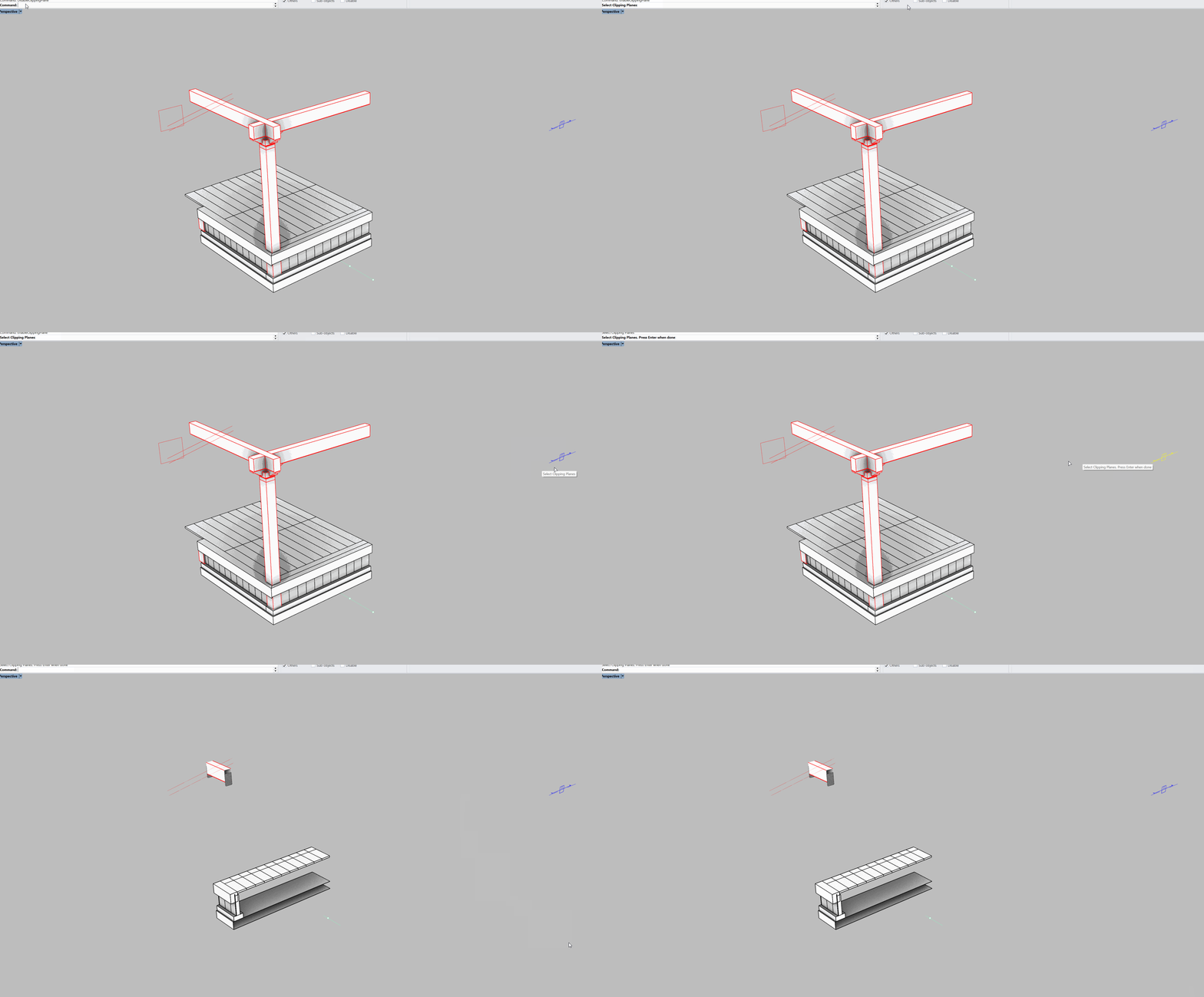
Could you please share your 3dm file? Thank you.
I’ll try. It’s a large file and requires editing so you can find the issue. I’ll upload it.
I seem to be having some success with some objects with the sections on the right, but the one on the left only shows the chosen fills when it’s selected. Otherwise some objects persist without fills, as in the image below. Some are in blocks, some aren’t. Several objects which aren’t showing with fills appear to be set with the correct section fills Section Styles.
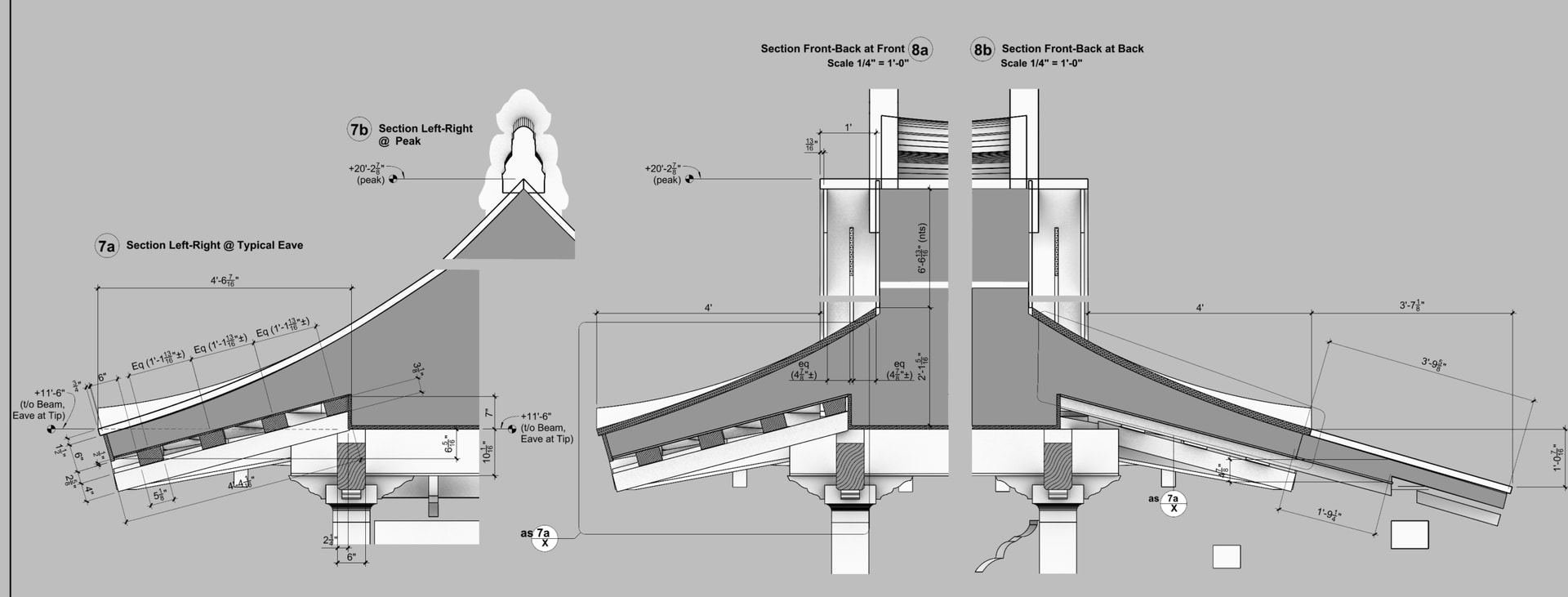
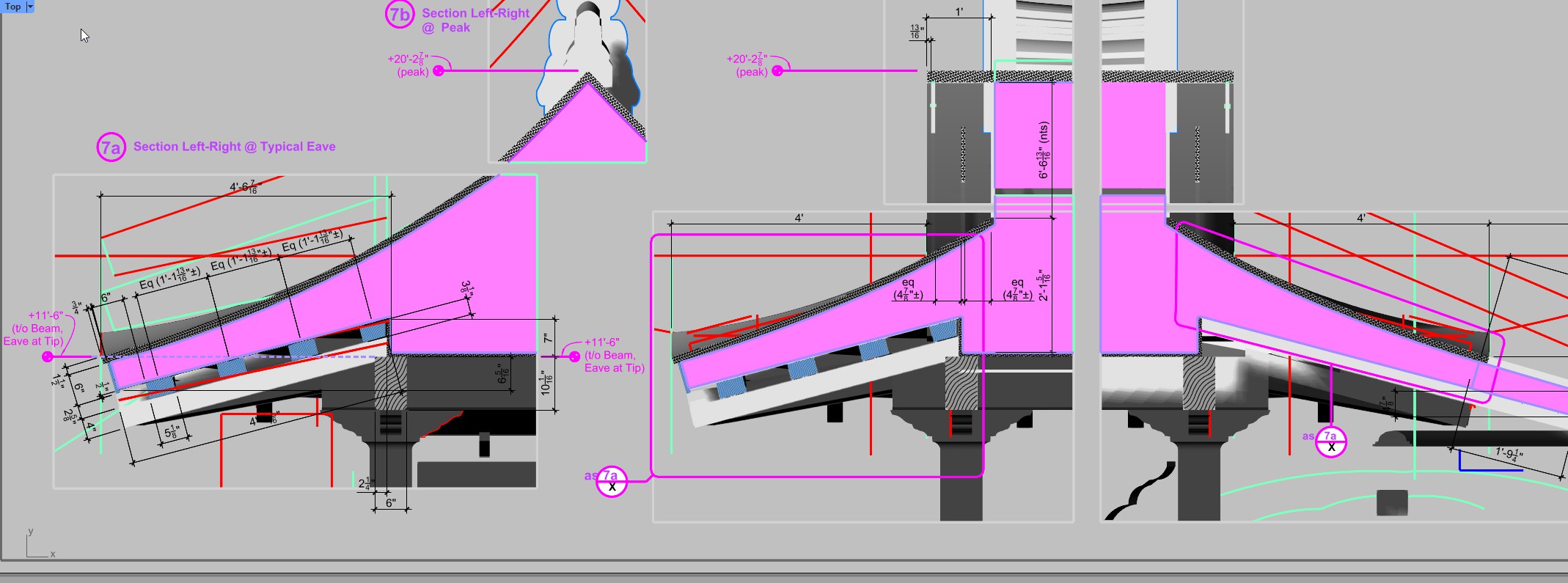
It’s below. You’ll notice that Visual Arq is active. I’lll try it with Va disabled.
Rhino 8 SR24 2025-10-8 (Rhino 8, 8.24.25281.15001, Git hash:master @ ba28668a8431990c700173e46ef2dbcb873cf092)
License type: Evaluation, build 2025-10-08
License details: Cloud Zoo
Expires on: 2025-11-30
Windows 11 (10.0.26100 SR0.0) or greater (Physical RAM: 64GB)
.NET 8.0.17
Computer platform: LAPTOP - Plugged in [98% battery remaining]
Hybrid graphics configuration.
Primary display: Intel(R) UHD Graphics (Intel) Memory: 2GB, Driver date: 9-12-2025 (M-D-Y).
Integrated graphics device with 4 adapter port(s)
- Windows Main Display is laptop’s integrated screen or built-in port
Primary OpenGL: NVIDIA RTX A5000 Laptop GPU (NVidia) Memory: 16GB, Driver date: 9-22-2025 (M-D-Y). OpenGL Ver: 4.6.0 NVIDIA 581.42
Integrated accelerated graphics device with 4 adapter port(s)
- Secondary monitor is laptop’s integrated screen or built-in port
- Secondary monitor attached to adapter port #1
OpenGL Settings
Safe mode: Off
Use accelerated hardware modes: On
GPU Tessellation is: Off
Redraw scene when viewports are exposed: On
Graphics level being used: OpenGL 4.6 (primary GPU’s maximum)
Anti-alias mode: 4x
Mip Map Filtering: Linear
Anisotropic Filtering Mode: High
Vendor Name: NVIDIA Corporation
Render version: 4.6
Shading Language: 4.60 NVIDIA
Driver Date: 9-22-2025
Driver Version: 32.0.15.8142
Maximum Texture size: 32768 x 32768
Z-Buffer depth: 24 bits
Maximum Viewport size: 32768 x 32768
Total Video Memory: 16 GB
Rhino plugins that do not ship with Rhino
C:\Program Files\Rhino 8\Plug-ins\Tibidabo\VisualARQ.rhp “VisualARQ”
C:\Program Files\Rhino 8\Plug-ins\Tibidabo\Tibidabo.rhp “Tibidabo”
Rhino plugins that ship with Rhino
C:\Program Files\Rhino 8\Plug-ins\SolidTools.rhp “SolidTools”
C:\Program Files\Rhino 8\Plug-ins\Commands.rhp “Commands” 8.24.25281.15001
C:\Program Files\Rhino 8\Plug-ins\rdk.rhp “Renderer Development Kit”
C:\Program Files\Rhino 8\Plug-ins\RhinoBonusTools.rhp “Rhino Bonus Tools”
C:\Program Files\Rhino 8\Plug-ins\AnimationTools.rhp “AnimationTools”
C:\Program Files\Rhino 8\Plug-ins\RhinoRenderCycles.rhp “Rhino Render” 8.24.25281.15001
C:\Program Files\Rhino 8\Plug-ins\RhinoRender.rhp “Legacy Rhino Render”
C:\Program Files\Rhino 8\Plug-ins\rdk_etoui.rhp “RDK_EtoUI” 8.24.25281.15001
C:\Program Files\Rhino 8\Plug-ins\NamedSnapshots.rhp “Snapshots”
C:\Program Files\Rhino 8\Plug-ins\MeshCommands.rhp “MeshCommands” 8.24.25281.15001
C:\Program Files\Rhino 8\Plug-ins\IronPython\RhinoDLR_Python.rhp “IronPython” 8.24.25281.15001
C:\Program Files\Rhino 8\Plug-ins\RhinoCycles.rhp “RhinoCycles” 8.24.25281.15001
C:\Program Files\Rhino 8\Plug-ins\Grasshopper\GrasshopperPlugin.rhp “Grasshopper” 8.24.25281.15001
C:\Program Files\Rhino 8\Plug-ins\Toolbars\Toolbars.rhp “Toolbars” 8.24.25281.15001
C:\Program Files\Rhino 8\Plug-ins\3dxrhino.rhp “3Dconnexion 3D Mouse”
C:\Program Files\Rhino 8\Plug-ins\BlockEdit.rhp “BlockEdit” 8.24.25281.15001
C:\Program Files\Rhino 8\Plug-ins\Displacement.rhp “Displacement”
C:\Program Files\Rhino 8\Plug-ins\SectionTools.rhp “SectionTools”
I’m not having success with either Rhino or Va in displaying section fills in details for all of these objects, some of which are in blocks and some aren’t.
At the moment, some of the Section styles set in Rhino are showing up in the detail windows (though clipping planes are disabled and Va Section are active instead) and as set in the Section attributes panel. I’m not sure how to manage this when switching between the two applications’ fill management systems.
Because I’m having intermittent issues with blocks disappearing when selected unless Va is disabled, I was attempting to manage this without Va. However, Rhino 8’s section styles seem to behave unpredictably in blocks, so I’ve switched over to Va where I’m facing this confusion of active Rhino section styles.
As is visible below, many objects are unfilled though their section styles are set to display. That’s the problem I was having with Rhino Clipping Planes and I have the Rhino folks looking into that. Now with Va sections and Attributes I’m not sure how to proceed to accomplish the same thing. I’ll email a link to the project.
With Va disabled the section styles display properly in Rhino. This seems to point to Va being the problem.
Hi @djhg,
I can’t reproduce this issue.
I’ve got your file. I open it, and I can see all section styles in the geometry. VisualARQ is enabled:
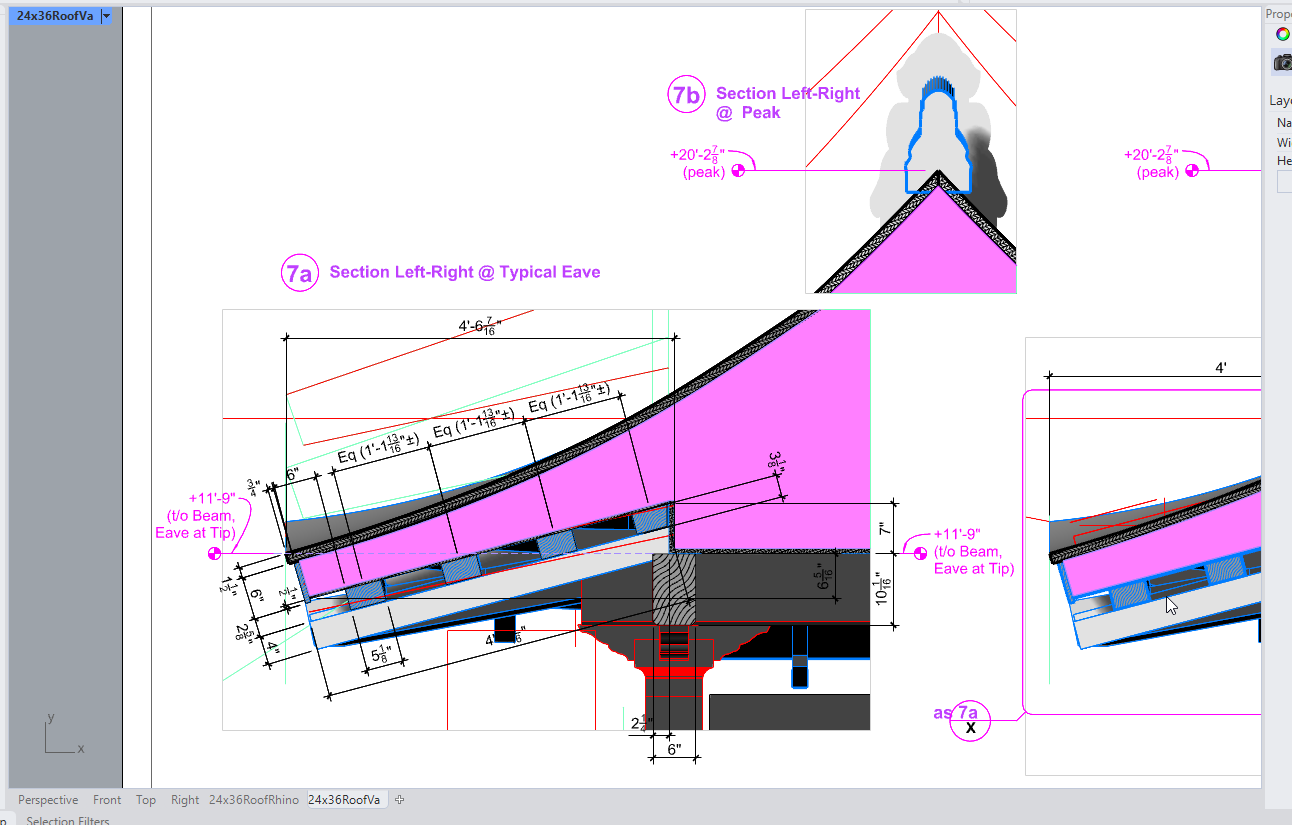
Using R8 sr24 and VisualARQ 3.6.2 as well.
Section styles seem to work in all details of your two layouts. They are all using clipping planes. If I switch to VisualARQ Sections, the section styles are displayed properly as well:
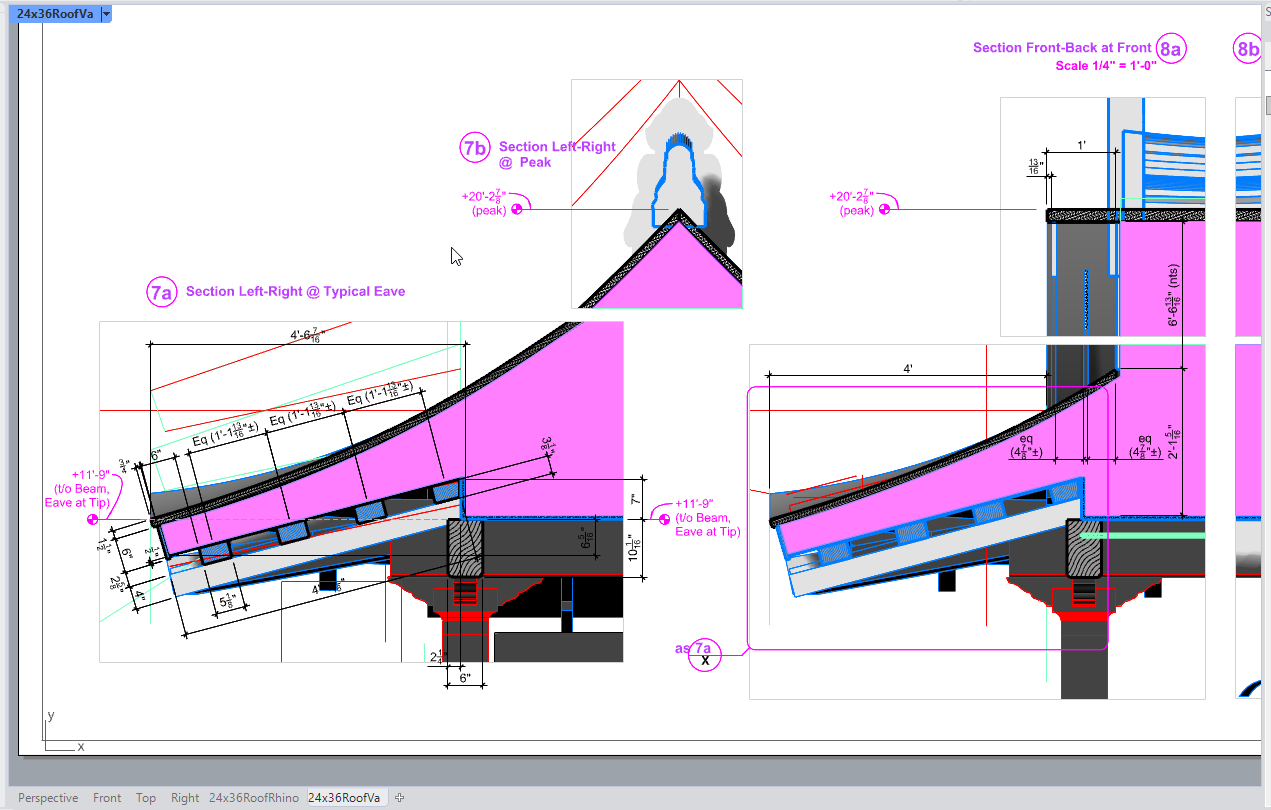
Am I missing something? Is this a display issue, or a printing issue?
Are you having this issue with other display modes? Can you try it with the “Hidden” display? or with a Rhino display mode reset to defaults (in case you have changed an setting)?
VisualARQ 3 uses the Rhino Section Styles. So you should see the same when you see an object in section and you have assigned the section styles to the object from the Rhino section styles dialog, or from the VisualARQ’s “Section Attributes” section in the Properties panel. They are both synchronized. The main difference is that VisualARQ adds a “Print Width” and a “Print Color” attributes which are missing in the Rhino Section Styles dialog.