what in the bleep Rhino? Why can a square building 130’x55’ on 11”x17”not be scaled to a normal arch scale no matter what I do? Change the units inches model space to inches layout space and I get a somewhat normal scale then I go to preview it and it shrinks to the size of a dime? Go back to feet in model and inches in layout and the only somewhat normal scale I can hit is 1.5”=1’0? anything larger or smaller important way off? I don’t want 1.5” scale that’s ridiculous…. what am I missing ? this is driving me nuts…. also why does it look fine in layout after scaling and then when I go to preview it again shrinks to the size of a dime on the page? I gave up and just used the print >set window > and set scale and it worked fin got out 3/23”=1’0” after 3 hours of trying to set a layout this took 5 minutes…omg!
Hi Chad -
Please post both the output from the Rhino SystemInfo command and a 3dm file that you are having issues with.
-wim
Hello thanks for taking a look I have other files I am struggling with as well that I need to submit to the city of Los Angeles and must print for review. It seems the bigger in layout print I go, for example ArcD 24”x36” is a fairly standard construction print size. I read these documents almost everyday and I never see the scale saying something like 3”=1’-0”…… this is bizarre to me I cannot size in layout even when I add details and split the layout its still to big? This file I am sending you is actually about the same size as my other file in model space around 130’x50’ and in layout out space it’s a disaster! I can’t be takin seriously using these large crazy scales…. please let me know if there’s something I can fix, and as mentioned before I have tried changing units to match inches to inches and on my other file when I go to preview the print it just shrinks the model down to the size of a dime on an 24x36 inch paper size? here is my system info
hino 7 SR38 2024-12-3 (Rhino 7, 7.38.24338.17002, Git hash:master @ 97e36efa02d7f71638988290bb2d190fcf1b18c5)
License type: Educational, build 2024-12-03
License details: Cloud Zoo
Apple macOS Version 15.6.1 (Build 24G90) (Physical RAM: 32Gb)
Rhino is running in Rosetta2 on Apple Silicon
Mac Model Identifier: Mac14,6
Language: en-US (MacOS default)
Apple M2 Max (OpenGL ver:4.1 Metal - 89.4)
OpenGL Settings
Safe mode: Off
Use accelerated hardware modes: On
Redraw scene when viewports are exposed: On
Anti-alias mode: 4x
Mip Map Filtering: Linear
Anisotropic Filtering Mode: High
Vendor Name: Apple
Render version: 4.1
Shading Language: 4.10
Maximum Texture size: 16384 x 16384
Z-Buffer depth: n/a
Maximum Viewport size: 16384 x 16384
Total Video Memory: 21845 MB
Graphics: Apple M2 Max
Displays: Unknown (255dpi 2x)
Graphics processors
Apple M2 Max
Color LCD (1728 x 1117 @ 120.00Hz)
USB devices
: USB DISK 2.0
Kareem PRINT :KELLY.3dm (4.0 MB)
Hi Chad -
The footprint in that model is basically about 1560" x 650" and you want to put this on a 36" x 24" layout. Here in Europe (or, at least, the metric part of that), that would be set to 1:50, which is a common scale. I can’t help you with imperial units and what is custom on drawings in Los Angeles. It looks like 1" = 4’ should work?
This sounds like a different issue?
Printing your file to PDF and then viewing it in macOS Preview seems to work fine here.
It possibly doesn’t matter in this case, but please note that you are running a version of Rhino on an operating system that is not supported for that version.
-wim
Set the scale when printing the layout to 1:1. The layout is already scaled.
-
Smaller scales (1:500, 1:200): Used for site plans and overall building layouts where showing the building’s context is more important than small details.
-
Medium scales (1:100, 1:50): Standard for floor plans and elevations, which show the layout and general arrangement of spaces.
-
Larger scales (1:20, 1:10): Used for construction and section details, where the construction assembly of a specific part of the building, such as a roof eave or a wall section, is shown in greater detail.
I think I want a medium or more normal scale for imperial. 1:1 is not normal for a floor plan. But this scale seems to be somewhat normal as I did not use layout I used print preview and the scale option to set 3:32”-1’ which I need to print and check the scale because why can’t layout produce those results? The problem is in layout like mentioned above I’m at a 1:4 this might be acceptable in millimeter scaling but in an imperial it’s not especially for a floor plan…..I should be in the 1:100 to 1:50 range here in the states…..Not sure why I’m being told this is not a version for Mac as I downloaded this version on a Mac off the McNeal rhino for Mac downloads?
Set the print scale when printing the layout to 1:1. That solves the layout being very small when printed. The layout was scaled when created.
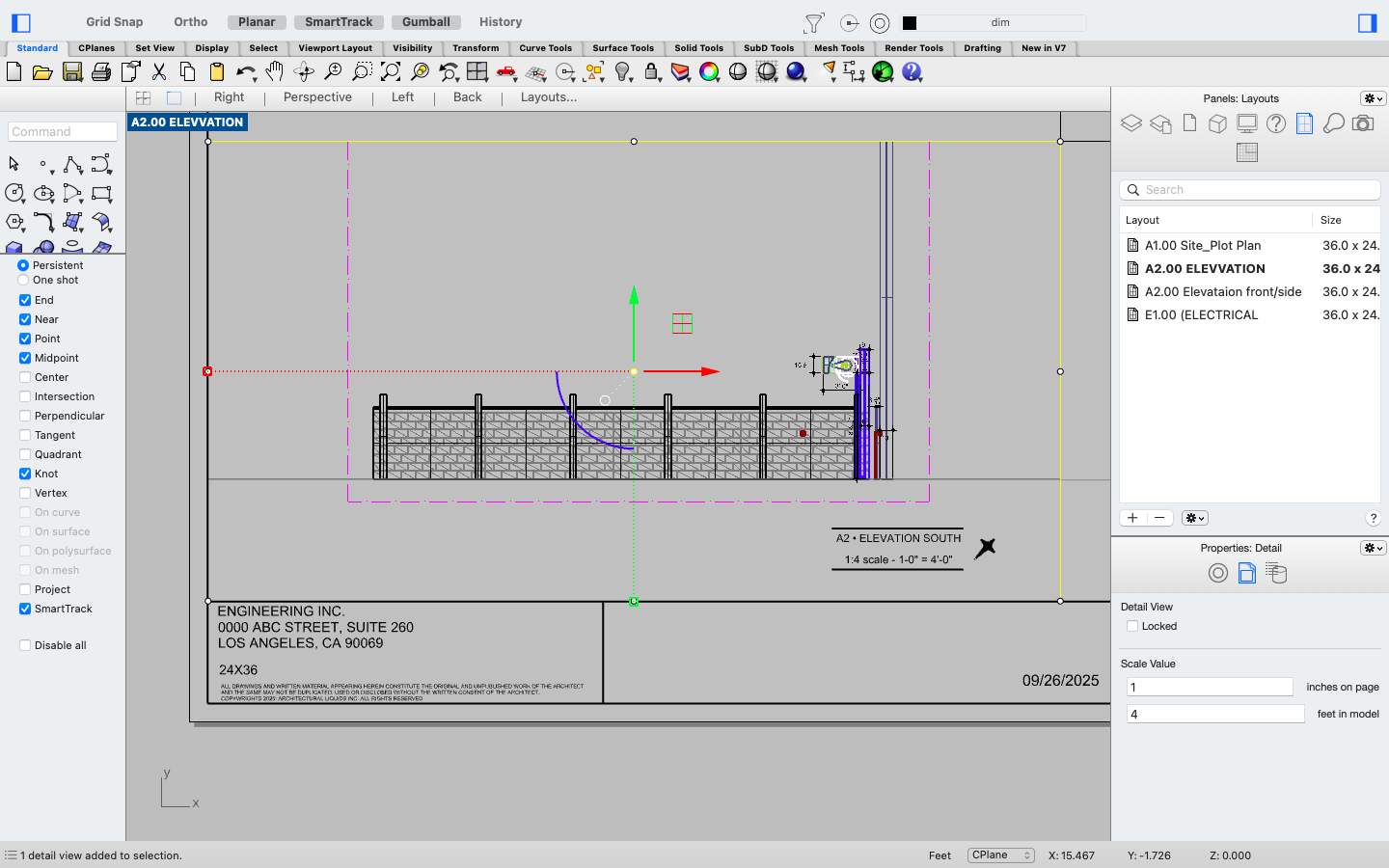
Yes I understand this but you’re still not fully answering my question. Let’s use another example let’s say I create a rectangle in the model 24”x36” then to match my paper size I would scale the rec up to 48 in the model to set a paper border for a detail let’s say! So my drawing in model seems to fit 1:48 very nice. Then I go to the wonderful rhino layout I make a 24”x36” to match my model rec I double click in one of my detail squares and add the view I saved with my rec border and then click the detail to check the scale it says 1 inches on page and 4 feet in model….doesn’t this equal a scale of 3”=1’ if so why in Gods name does it give me that scale when my rec tangle that was scaled to 48 which would be a 1/4” is now smaller in the detail space and the detail is reading 1:4 this makes no sense…..is there a bug on my software I have no idea why I can scale up. 3’x2’ scaled up rectangle to 48 in model and then in layout it’s not even matching or scaling up to a full view layout detail space and is giving me a scale 2-3 x bigger going from 1:48 to 1:4? Am I missing something here or no one can see this? I’ll send a screen shot.
Hi Chad,
I get the impression you are overthinking it and applying unnecessary adjustments.
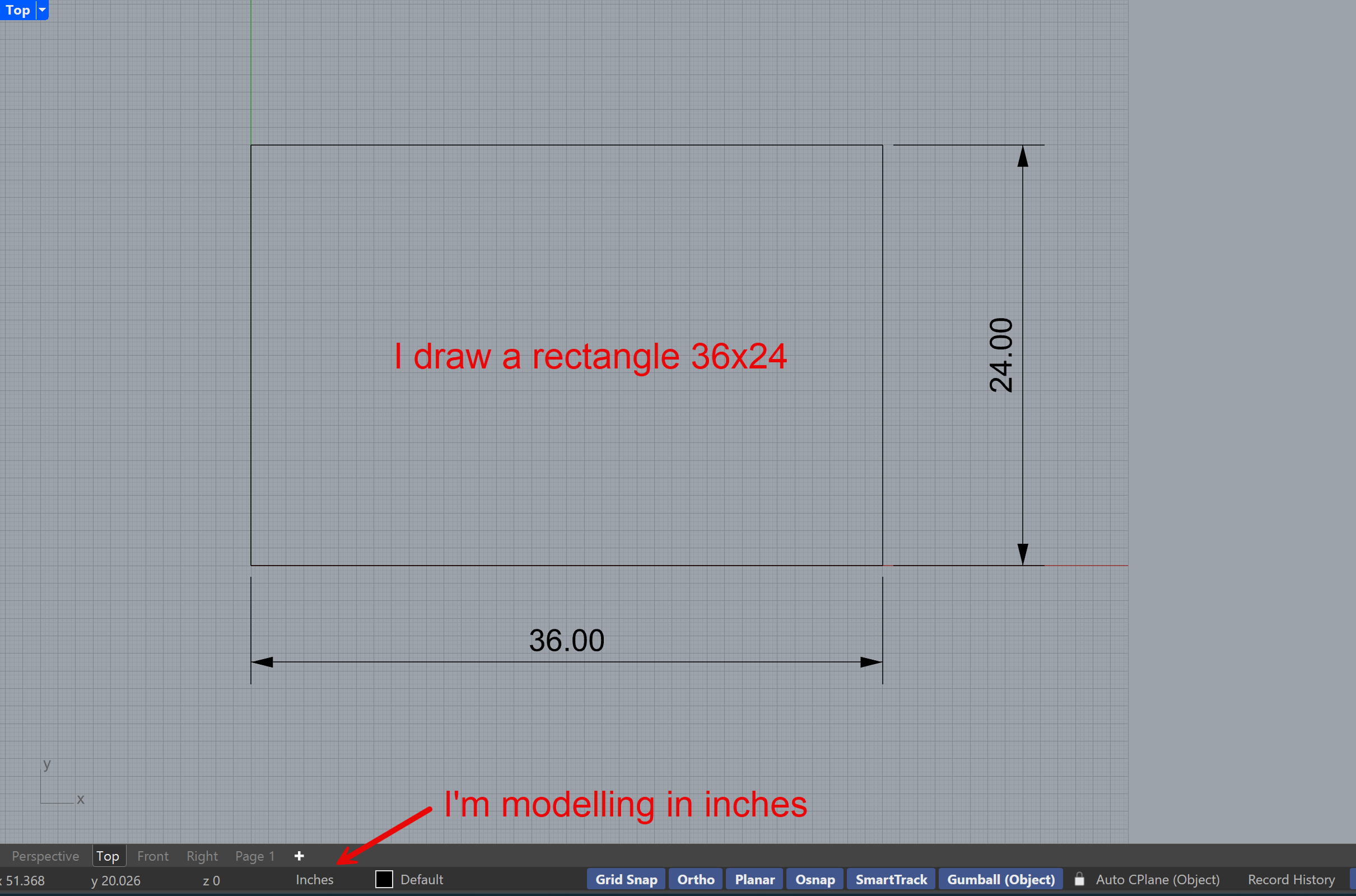
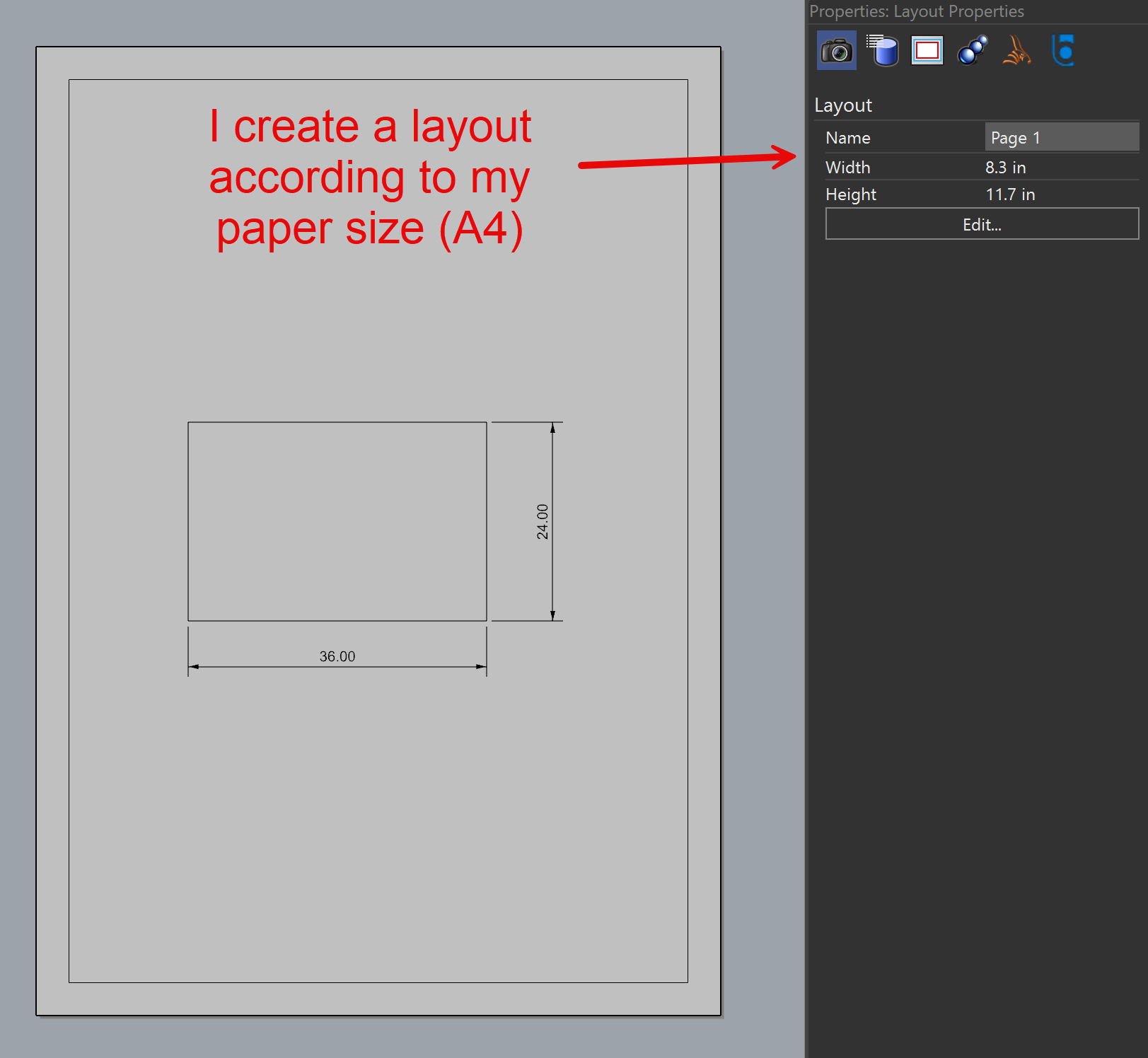
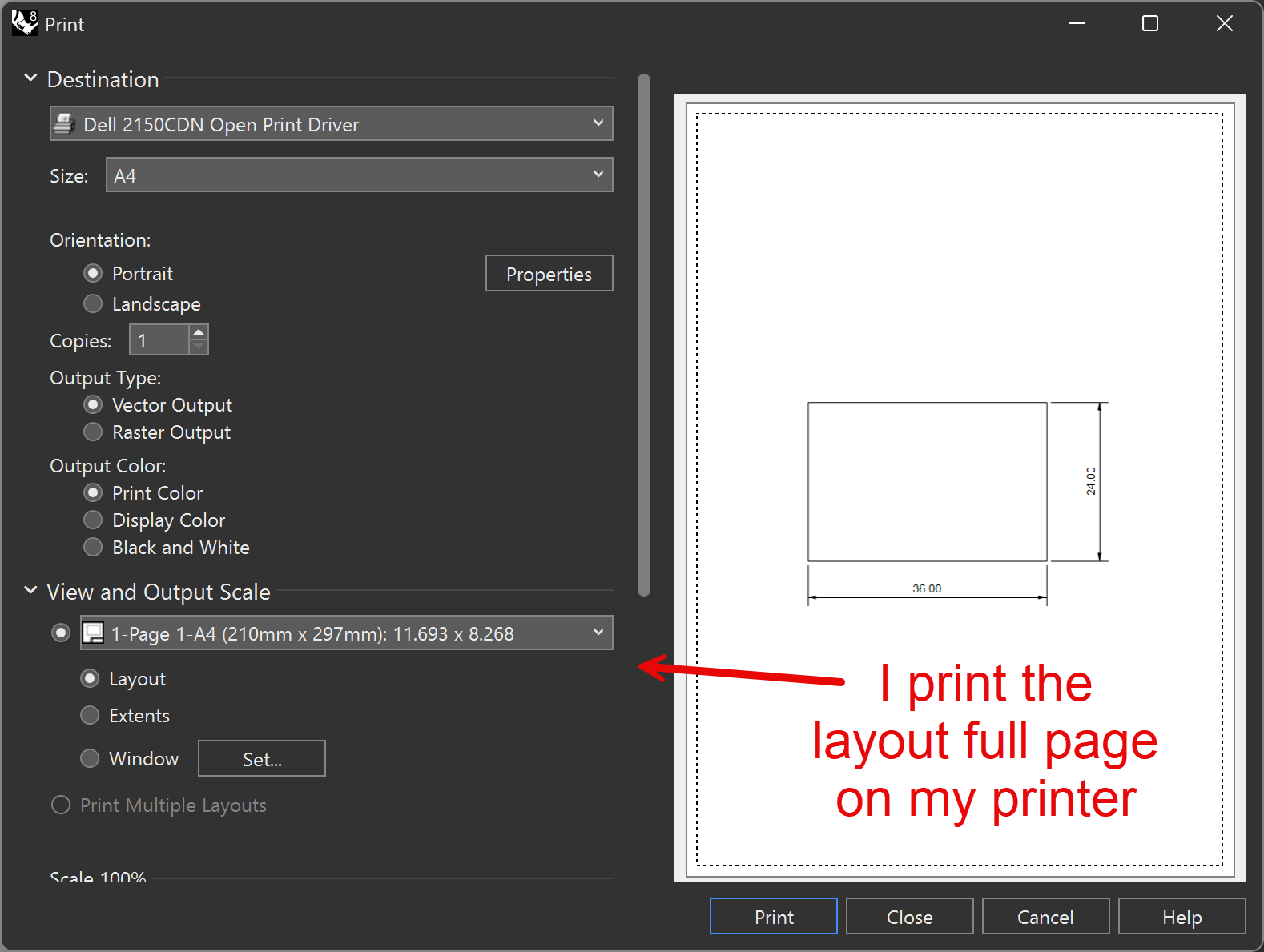
Here is the process I would use to draw a 36" x 24" rectangle at 1:10 scale:
-
Draw in real-world units:
-
Create a layout that matches your paper size:
-
Place your detail and set the scale to what you need:
-
Print the layout at full page size and with print scale set to 1:1:
-
Check the result:


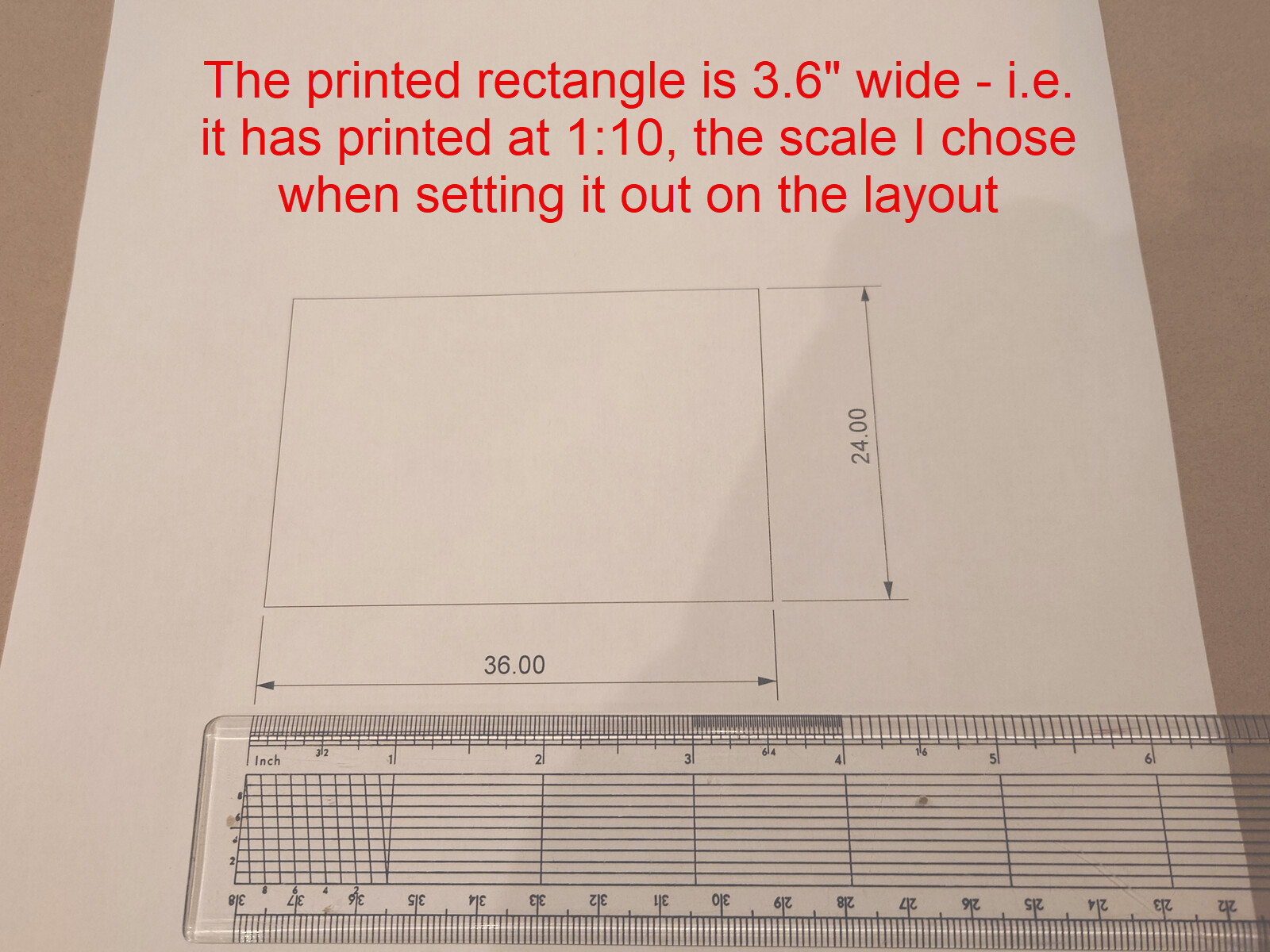
HTH
Jeremy
Hi Jeremy I mean that’s what I did so my question is if I sized my drawing into the rectangle can I put that scale on the drawing because this is the scale I want but layout is confusing me saying 1:4 when my rectangle is sized and scaled. If I were to draw in real world measurements pretty much no architecture is going to fit into a 24”x36” this is why I scaled the rectangle to the print size I want. But when put into layout the detail then reads 1:4 that’s a big difference 1:48 or 1:4 which on is true and which one can I put on my printed paper so when the city pulls an arc scale to measure I don’t look like I’m an idiot….yes I am printing 1:1 but what is my scale layout is confusing me….1:4 or 1:48 it’s just bizarre to me it’s doing this on any computer I try. I guess I have to waste the time and money to print the layout and measure it and find out the scale that way which just seems bizarre to me buts the only thing that will give me the truth I guess🤷🏻
Pay attention to the units in layout space.
1:48 without units, 1":48", 1":4’ and 1/4":1’ are the same.
Thanks David! Yea need to put my glasses on for layouts from now on! Thought I was in 4 inches 
 ! I was defiantly over thinking this!
Hi Chad,
Say you have a site plan of an area 120’ X 87’. Choose a template with feet as the units. Don’t draw a rectangle 36" X 24". Just draw the site plan in feet. Your drawing will be made to fit in the paper area when you choose an appropriate scale for the layout detail. It will adjust in real time, so you can see when it fits as you adjust the scale.
Regards
Jeremy