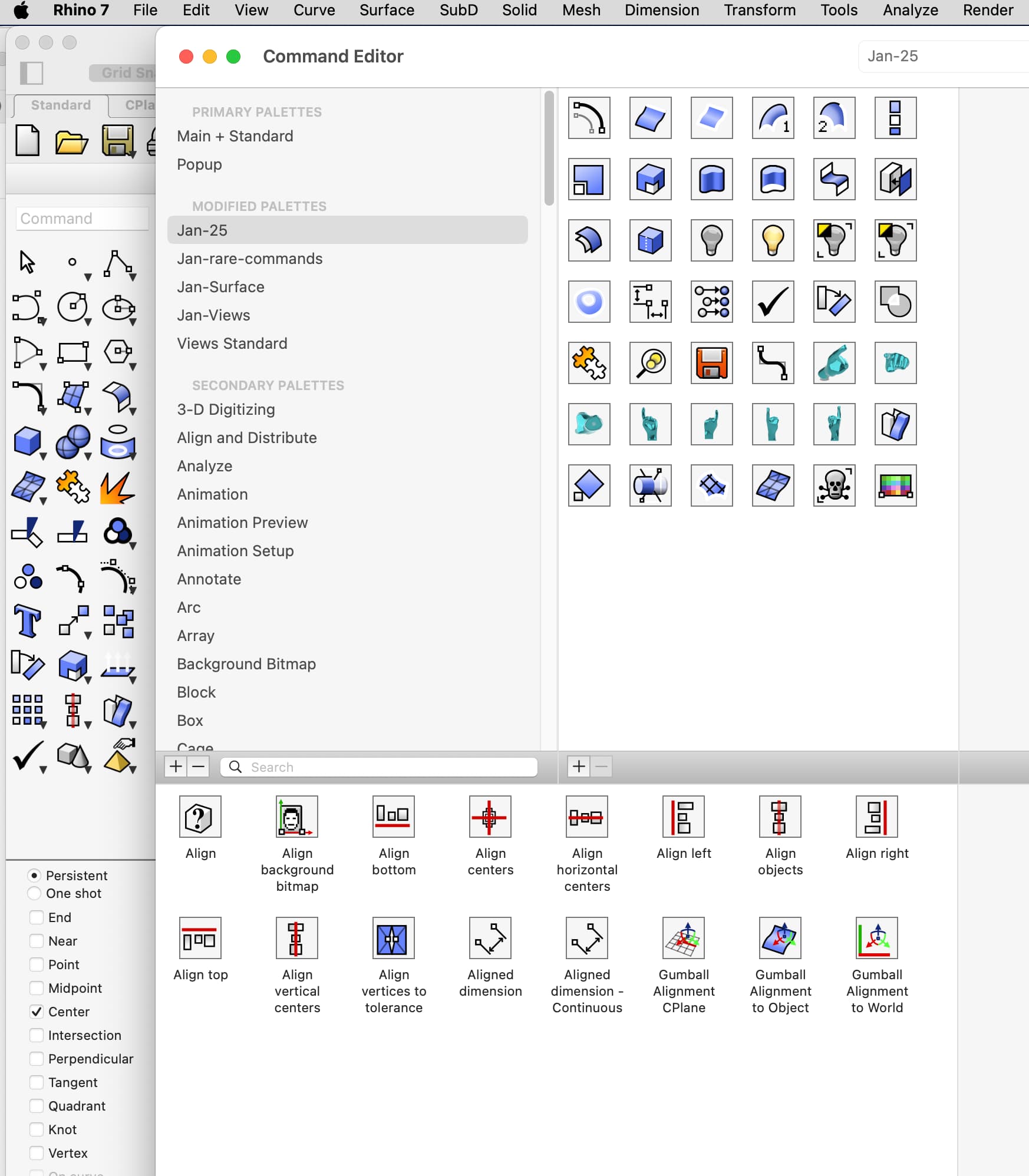
I just downloaded the test version of v8 for Mac, and I am struggling to find a way to customize toolbars as it was so easy in v7, just “Rhino 7 – Command” and then drag and drop the icons of the commands you need into your customized set, see pic:
In v8 the Command under Rhino 8 is gone, under Settings I find an icon Toolbars, but when going there I get this:
Clicking Add gives my this:
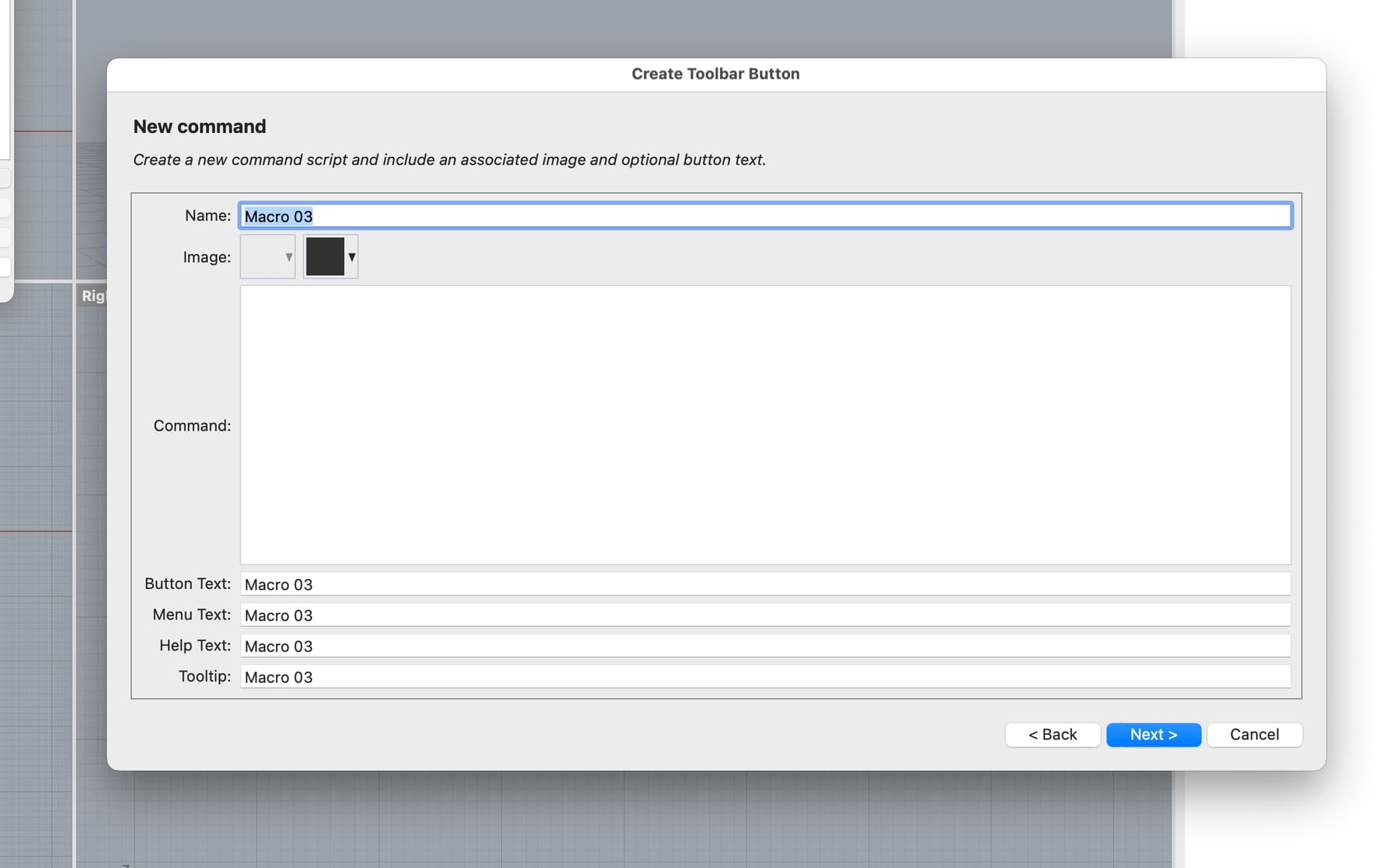
Clicking Next> gives me this:
But I don’t want to create a macro or new command, but just to pick my favorite commands and unite them in one palette or toolbar.
Now this is what Chat GTP has to say about this: " Rhino 8 for Mac currently does not include the Command Editor with drag-and-drop icons and search like Rhino 7 Mac does . This useful interface seems to have been overlooked or replaced with a more modal and less intuitive system — at least in the current Rhino 8.3x Mac version."
Is that true? Or is there another way as simple as in v7 to put together your own selection of existing commands?
More ChatGPT crap/interpretation. The fact is that the V7 Mac interface has been deliberately moved closer to the Windows interface for V8. It has not been “overlooked”. What you are seeing is basically the same as the V8 toolbar customization system. There are also issues with that, but that is another discussion.
Yes, just create a new blank toolbar via the toolbar window/command and start copying icons from the current toolbar set into the new toolbar with Cmd+Right click and drag and drop.
Thanks for your answer!
I am still struggling with it, though. By Rhino8 – Settings – Toolbars I created created a new toolbar called Test-1, and Cmd+right click lets me copy an icon, but I can’t drag it into the right window … or rather I can, but it doesn’t stay:
What am I missing?
You need to drag the icon onto the toolbar, not into the toolbar window. You are directly creating toolbars by adding buttons in the Rhino window, you do not need to go into the toolbar window create “command sets”. This is Windows, but Mac should be similar:
Great, thanks, now I’ve got it. It works a bit different on Mac as I found out, you need to drag the icon into the get field at the bottom:
And even then it updates not right away, it does sometime, but I still haven’t found out what triggers that:
What I haven’t found is a way to rearrange the icons in case you use one more often than anticipated and want it at the top. But that I can live with.
What I found a bit confusing at first is that not only the specific command you aim for is copied, but the entire family, so to speak (the little grey triangle). But that may even be an advantage, since you can access all the related commands from your custom toolbar … which, as it took me a while to find out, can be found not under Toolbars but Containers …
Anyway, thanks again for your help!
Arranging is done via drag and drop like all the rest. The important modifier keys are Shift plus Ctrl (Windows) / Cmd (Mac).
Shift+LMB = Move
Drag the button to a new location in a toolbar. Also Delete, just drag the button out into the main window and release, you will get a delete confirmation window popping up.
Shift+RMB = Edit
Allows you edit what’s behind the button - command, tooltip, image, etc.
Ctrl/Cmd+LMB = Copy
Drag a copy of the button to a new location
Ctrl/Cmd+RMB = Link
When copying a button to another toolbar, it creates a link to the original toolbar that the button came from. I have never used this option.
There is also another way to make new buttons. When you create a new blank button the “wizard” will appear. One of the choices will be to select an existing command.
Following this option, it will show you the Macro library with all the standard Rhino commands and you can choose which one you want for the left mouse button click. After that comes the option if you want to have another command for the right mouse button click.
Great, thanks again, this is really helpful! It is very different from the way it was in v7, but now with your explanations I find it has all the same functionalities.