John Brock here.
Now that I’m retired, I will use Rhino and comment from my perspective.
I have a super simple file of a gate frame stiles and rails.
I have set Layers for objects and dimensions, with non-default print widths.
File is attached.
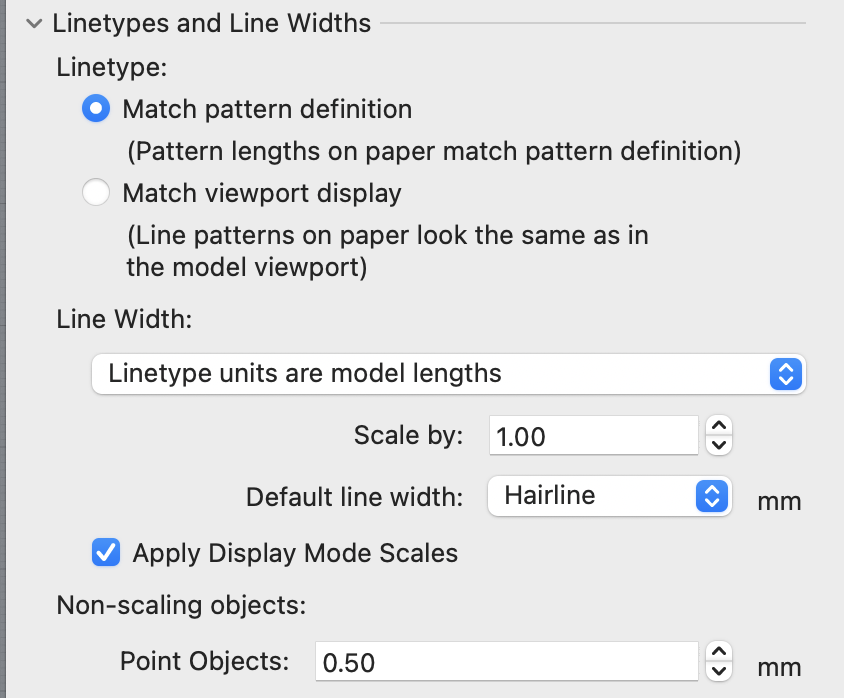
Why do the two drop-down options describing Linetype units? Is this in the wrong section?
I assume Scale is so I can apply a multiplier to the line widths I set in the Layer panel? If that’s true, it’s worded poorly.
Default line width I assume is to use a width that will override my Layer panel settings?
Apply Display Mode Scales makes no sense. My working display mode is not involved in this. If it is turned on, then in my print preview I see the Print Widths I set in the Layer Panel. When it’s unchecked, I don’t. I can’t make any sense out of the control label.
I read the Help article for Print and still do not understand how these option terms make any sense.
I should change my Account primary address so my identity is not so cryptic…
I figured I’d take my own advice and post the Rhino problems I’m trying to solve with a description, a simple example, and hopefully enough detail that my question makes sense.
In this example, I can (and did), easily get the shop drawing print I wanted, but the command options didn’t make sense based on what I know the command can do.
For a linetype is defined as 1 mm wide, do you want that to be 1 mm wide on the paper or 1 mm wide compared to other geometry in the model? If you have a better way to describe this, I’m all ears.
Yes “Scale by” scales all widths by a number. Again, if there is a better way to describe this let’s fix it.
The print width column in the layers panel can show widths with real numbers like 0.18 or the word “Default”. When a layer’s print width is set to “Default”, this print dialog setting defines what default actually means.
This might be a bug, I’m not sure yet based on your description. If you look at the Surfaces section in the default wireframe display mode, you should see that edges have a scale of 2 and isocurves have a scale of 1. This lets us show surfaces with thickness for different parts of the surface. This checkbox says “yes, use these scales when printing”
Model linetype scaling was missing from the original Rhino 8 release.
And how Rhino 8 sr6 adds it back in a more powerful way than Rhino 7.
Linetype pattern and width units can be set in the new enhanced Linetype definitions.
There is a “Use Model Units” override.
This is legacy and possibly can be viewed as duplicate.
But we also avoid taking any features away because established work flows are important to not mess up.
If the layer Print Width is set to **Default", then the Default line width in the Print dialog applies. My Default is set to .18 not Hairline. A quick way to increase the Print width or every thing is with the Print dialog Scale option. Mine is set to 1.1.
Rhino 8 now scales the Print width with the same scale as the Display mode. This is helpful if you want to print edges of surfaces, for example, with thicker print widths. Prior to Rhino 8 you could only print curves with Print Widths. If you “uncheck” use Display mode scale, then printing will work with no display model scale like Rhino 7. Unchecked is the default.
A couple of my Rhino 8 Print favs:
Easier to select a mixed set (non-linear) of layout
Mac and Windows are the same Print dialog, including Rhino PDF
When checked RhinoPDF will open the PDF in your PDF reader
Option to use Layout print sizes, to accommodate a mixed sheet size set.