Hi @bjornsmolarek,
Thanks for the nudge on this, it got buried over the summer, but let’s get in to it now.
Here is the issue. Rhino uses its own advanced scaling for the layouts is called “Layout Space Scaling.” When that is enabled on the document in Options → Annotation Styles, any value in the annotation style like text and arrow height and many other, are scale to be 1:1 on the layout.
(If text is created 2.5mm high, it will be displayed on the layout 2.5mm high regardless of the detail scale.)
AutoCAD has a different and more complicated way of doing this called Annotation scaling and Rhino does not support this, but uses the above method. So what can you do?
The best way to make a model in Rhino that imports to AutoCAD correctly is to go to model space, is to uncheck the “Layout Space Scaling.”
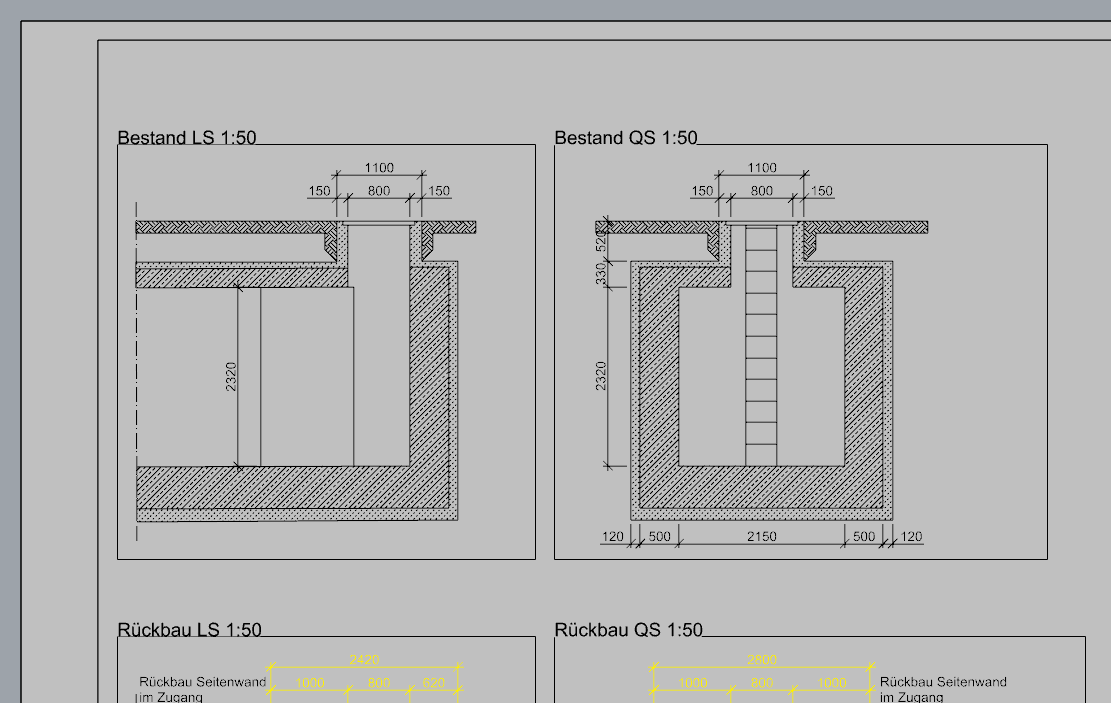
This is the way your model looks in the Rhino model space and it is the way it will look in AutoCAD:
And with layout scaling, this is the way the details containing the model dimension look with Layout scaling enabled:
Uncheck the Layout scaling, and the model will look like it does when exported to Dwg:
Let’s fix it so it looks good with Layout scaling disabled.
In Options, edit the annotation style “mm Architectural” and set the model scale to 50.
Pick ok.
Next - very important SAVE before export or save as to DWG. ← IMPORTANT
Then I exported to DWG and used the 2018 Natural scheme.
Import the DWG to AutoCAD and the dimensions are scaled correctly.
I also turn off layers containing text in the 1:10 detail: they were too big and can not be shared with the 1:50. They need to be recreated and assigned to an dimension style with a scale of 10.
Here is how I exported your file.
Here is the DWG.
2B Datei Fehlermeldung.dwg (59.6 KB)
One additional issue is your mirrored text. Here are details of why and how you can fix this.
Again, there is a feature that Rhino has called “read text forward” and AutoCAD does not have.
So we have to turn this off in Rhino, can make sure the text looks correct with this off. If it does, then you are ready to export.
Let me know if you have any additional questions.
Hope this will help you come up with a plan to get the best results when exporting to AutoCAD.
Sincerely,
Mary Ann Fugier