I’m trying to change the axis of a block instance so that Y is up, not Z. Most of the parts I needed to do it to are oriented to world, so it’s pretty easy to just go to Right view, rotate 90 around the part’s origin point, then rotate it -90 back into place.
But one part is rotated 7.6 degrees in Z. I had to create a few reference lines, then do a rotate3D to accomplish this. That’s pretty time consuming though.
I was hoping I could create a script to handle it, but I I can’t figure out how to get the block instance origin to use for the rotation.
The ideal situation for me would be to have a script rotate the object in an axis I choose, at an angle I choose, then rotate every instance of the block in the opposite direction, but I’d be happy if I could just have it rotate the objects inside the block around the block instance’s axis.
Thank you. I’ll check that out. I had given up on grasshopper for most anything I do because I couldn’t find the resources I needed to understand options for input and output, how to reuse things like this, etc.
Knowing that it might be able to accomplish this, I guess I’ll have to look at it again.
Retargetting blocks (or reorienting them) is something I’m finding myself needing to do more frequently than hoped. I don’t understand why I would have a part with an origin seemingly in the middle of nowhere, but it happens So often. I’m sure it makes sense in whatever software built it, but less than useful for a rendering or animation setup.
What a language are you programming in. Or are you looking for a quick way to do this only in the Rhino interface?
In the Rhino interface, I would think the gumball might help. But turning off its AutoCplane behavior will give the gumball that is rotated with the block instance:
To prevent the Gumball from automatically aligning with the construction plane or world axes when inserting a block in Rhino, you can either turn off the Gumball or disable auto-reset and manually align the Gumball to the object after insertion, according to Rhino’s documentation.
Here’s how you can manage the Gumball’s behavior during block insertion:
Disable the Gumball:
Turn it off: Click the Gumball icon in the Status Bar (bottom of the screen) to toggle it off. This prevents it from appearing on any selected object, including blocks.
I tried a few times with Python with several methods. I never quite got it right.
I gave a little go at grasshopper as well, but I have the same problem I always have when I go about trying to do something with grasshopper. The tutorials and examples always skip by how you would go about setting up an input and a final output. I can get it to rotate one thing and turn it red, but since it’s a block instance, it’s a bit different. From what I can tell, it’s a bit deep to edit a block definition without using plugins. I mean, navigating block instances is a pretty big pain without using “BlockEditNew”
I incorrectly thought that I could set a cplane, define a block, and the orientation of the block would be based on that. It seems it is always based on world coordinates, so the only way to change the orientation of a part is to rotate it. It sure would be nice to be able to just redefine the block’s coordinates.
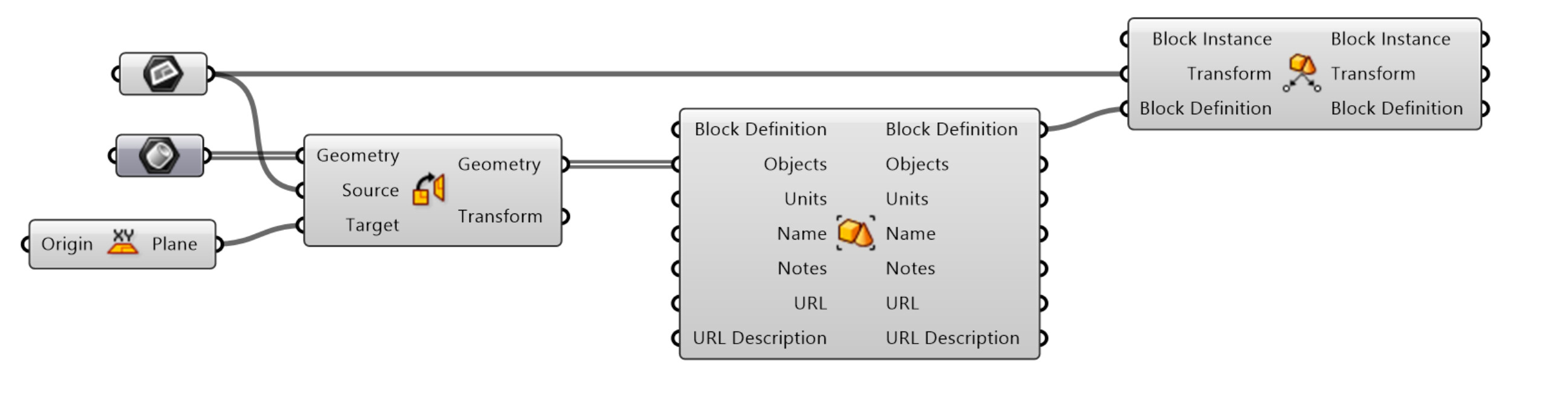
These three components create the new rotation plane:
Grab the transform (includes insertion point and its current rotation)
Turn that into a plane,
Then send that into a XZ plane that will create a new plane vertical thru the blocks insertion plane so we can rotate on that axis.
No question that dealing the block insertions are more difficult. This is because they are all ready at a certain transformation in space, so starting from one transform and adding another on top of it does raise the difficulty.
Technically the block definition itself internally could be rotated and that would rotate all the block instances of that block.
This is how it looks when dealing at the Block definition level. Block definitions are always at 0,0,0 origin point.
In this case the objects within the definition are all rotated individually, then redefine the block itself.
Thanks for the illustration. I was able to figure that portion out. I think geometry nodes just isn’t the right solution for this since it’s just making a single change to some element in the scene. There’s no reason to make that parametric really. I don’t know how to actually “bake” that kind of thing with grasshopper. I did the rotation. now what? Plus, I need to actually rotate the block itself, not just the instance.
I hadn’t thought of something before, and it’s a much simpler solution.
I just go into the block that needs a new rotation. Select the object(s) and define a new block. I still have to rotate it, but only for one of the instances.
I was pretty surprised to find out I can’t insert a block using a custom cplane.
I’m betting I could also just duplicate the parent block and orient it on the origin so that when I define the block inside, it is already correctly oriented. Then just delete that instance.
While I know grasshopper now has the ability to work with blocks. I still use Elefront for this stuff. Mainly because that is what I started with. It does have the ability to define a block on specific plane.
You can insert blocks on a custom Cplane if you would like. Set the Cplane and then insert.
And yes, without using Grasshopper or something. Inserting the block at 0,0,0. Then rotate it. Then everthing will rotate. NewBlockEdit makes that easier I would say in Rhino.
I know this is not exactly what is addressed on the base plane. But, if the custom plane is created, running a quick transform to XY world will also allow a custom plane.
Yeah this has come up before. Block Definition Custom Plane - Grasshopper - McNeel Forum
When dealing with a lot of blocks all at once and especially when you are nesting multiple blocks inside other blocks it is easier to not have to move the geometry from one plane. More often than not in a definition I already have a custom that is used to create the geometry and so utilizing that same plan is a cleaner option and ensure the geometry is in the correct orientation relative to that plane. Below is an example of what I am dealing with, where each rib is made of the 5 other induvial parts/block and then assembled together. This is done so when we export it to Fusion the part/assembly structure is maintained.
I tried that. I created a cylinder, moved it away from center and randomly rotated it. I then created a cplane 3 point and made Y down the center of the object. Then I created a block. The origin was still aligned to world and seemingly had nothing to do with the cplane.
I think you are missing my point. I understand that it’s possible but building the blocks in place on custom plane is much easier than transposing all the elements back to the xy plane in order to build the blocks.
He is saying you can use a custom cplane after you create the block. Using the built in components you have to build them around the origin. What you just described can be done with Elefront component though.
Of course, after I did that I realized that Block Edit New actually does have a command that does exactly what I’m after. It even lets me change the block origin And keep everything right where it’s supposed to be.
But for creating a block with the cplane, if Rhino is supposed to just work with the cplane then it definitely doesn’t seem to be working the way I would expect it to.