This is cool, thanks! Suddenly Rhino feels a lot less like a clumsy old CAD program… ; ]
The trick with the SHIFT key is clever, but there’s something I find irritating:
E.g. I use alias v for Line, and vv for Polyline. Now when I want to invoke vv, I need to hold SHIFT with my left pinkie, type v with the index finger, release SHIFT (otherwise the next keystroke will again not interpreted as instant), then type v a second time to conclude the vv alias. That required this tiny bit of extra concentration on typing that defeats the purpose of instant aliases.
Thinking out loud:
Maybe invoking an instant alias is just done by holding down a key for the fraction of a second, just a little longer as it would take to type a letter twice.
Now, standard behavior anywhere is, when you hold a key for some short time, the letter will repeat in the command line - which is rarely needed there, is it.
In the vv example, it would mean you press v, then quickly v again, then hold it for 0.15sec or whatever, to invoke the command. Like short-long in Morse code. A 3-letter alias would then have the rhythm short-short-long.
It’s not fully instant anymore then, but maybe fast enough, and the advantage would be that no modifier key is needed.
Also, how about putting the otherwise useless Capslock key to good use, and make it toggle instant / command line input? It would leverage all the aliases to ‘instant’ mode, as long as it is on. No multi-letter aliases, though, but maybe that’s fine sometimes.
Could a Rhino option be added which would disable tapping the spacebar to repeat the previous command and have tapping the spacebar bypass instant aliases? There are numerous other interface options already available.
What do you think if its a toggle? For example, if I press shift, instant is always on, when I repress shift it turns off. We toggle back and fourth as needed.
I would rather stay away from toggles if possible. Toggles are modes and with modes we would need to add some visual indication in the UI that we are in a certain mode.
I think any key can work as long as its specified. I like the caps lock idea! The indication that @stevebaer is referring to can by right on our keyboard.
my favorite so far is to set an instant alias for gumball relocate…
my alias is gr for that and having that instant is pretty delightful.
One word of caution… when you make aliases, make sure you are not designing them to spread your index finger and pinky finger in opposite directions. That action done hundreds of times a day will 100% lead you to a nasty RSI (ask me how I know) Keep them close together or repeats of keys.
TLDR
Super quick hot keys = GOOD!
wrist surgery from RSI from bad hotkeys= BADDDD
I like the way you implemented it. I always type commands with two hands, so holding Shift is probably not a big deal. I need to rewire my brain a bit, I never was very efficient with Aliases (100% my fault), I was a Popup abuser… probably a bad habit from the early days working in Rhino — a good chance to change that.
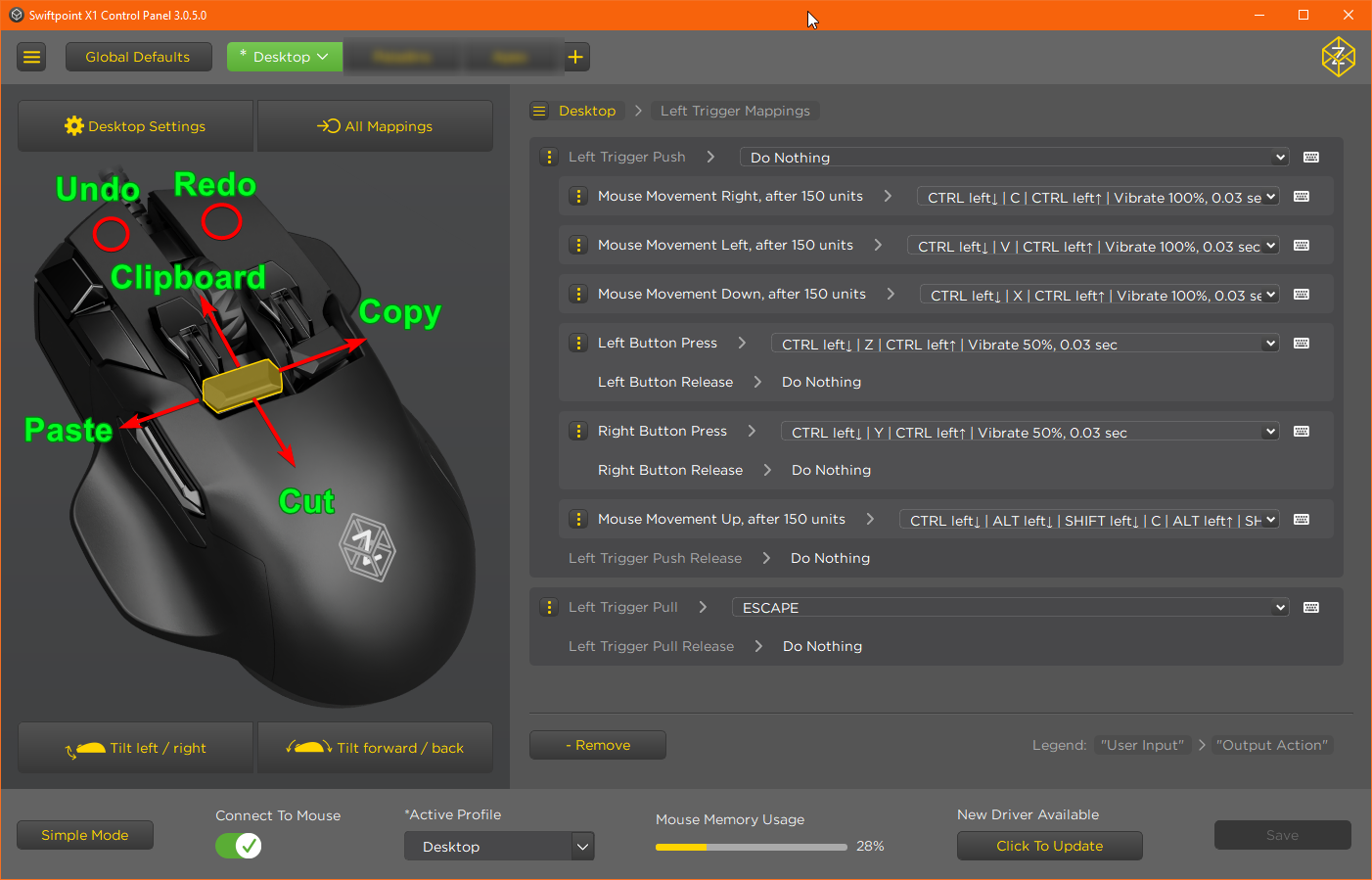
Some of us have had that for many, many years since the Swiftpoint Z mouse came out. I have intuitive “action centers” on my mouse. I press the button and gesture in a direction ( or press a second key) to do a thing. For example, one action center handles ctrl + Z, X, C, V, and Y:
I have the same thing for aligning the gumball to the CPlane, Object, and View or using GumballRelocate. That center includes related things, like toggling Project, Snappy Dragging, Tab Lock, or entering zero (CPlane origin).
I have built up a hundred commands to minimize the number of transitions my hands make from 3dConnx and Swiftpoint mice → keyboard. And because they are organized into related groups, remembering them hasn’t been an issue like the 20-button mice I’ve used in the past.
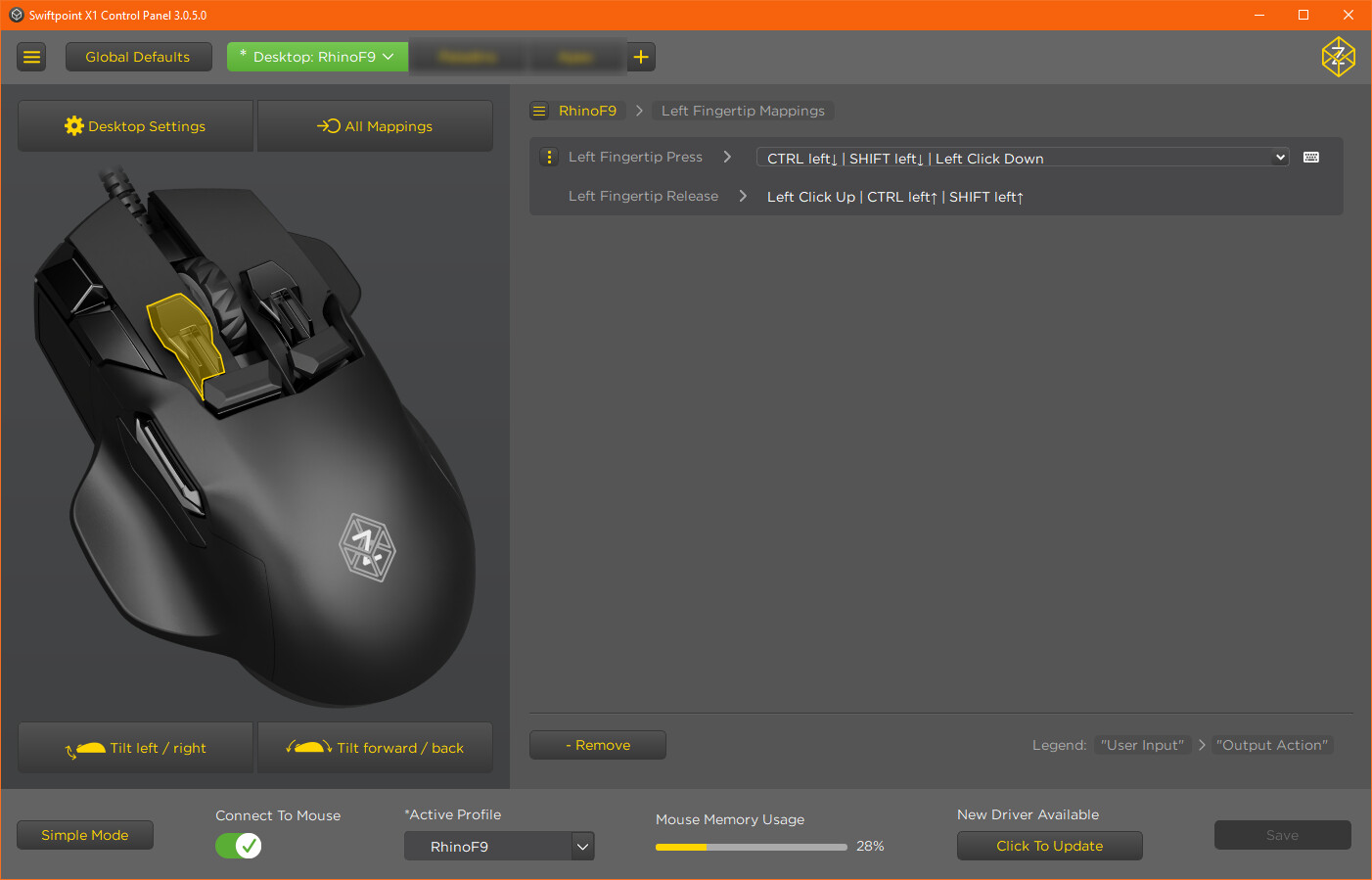
Heh, having two M1 buttons makes working with lots of Groups worth the price of admission alone. Big M1 is regular left click. Small M1 is sub-object select:
I will repeat it for the millionth time. Press a key for 0,5-1 second (the time must be customizable in milliseconds) and it will act as an instant command. For example, press “W” foe half a second to maximize/minimize the active viewport. Ot press “E” to zoom extents. Or press “Z” to soom the selection. Etc…
Sorry, but I really hate this idea Instant + click & hold to activate do not exist in the same universe for me. I don’t have any evidence on that, but repeatedly using click & hold for activate must slow down your brain overtime. It’s way more tolerable for me to use a one-key alias and quickly tap the spacebar (and probably quicker too). Holding to activate is like having a 200 ms brain freeze.
Obviously, this is not a very thought-out post of mine, but because you said you repeat it for the millionth time I wanted to show how on the other edge I am. Not to say, that maybe I would eventually be convinced, but very unlikely.
Of course, I’m not against something like this as an option.
Plenty of video games and mobile phone menus use “hold-for-a-brief-moment” to execute a secondary command quickly. The stock keyboard of “Samsung” phones has secondary commands that require probably about 200 ms of holding the main key to activate the secondary function. It’s extremely convenient! No way that this is going to slowdown your workflow. In fact, holding a key for a brief moment in Rhino will speed up your work and make it more convenient. For example, compare the time and effort for your wrist(s) to execute Ctrl+Shift+E versus just holding E for half a second to “Zoom extents”.
Another advantage is that you will immediately get access to at least 30 extra commands in Rhino that you can reach with a single press of a key by a single finger.
Furthermore, this also translates to much less wrist pain compared to being forced to often use combinations of one or two modifier keys plus another key.
thinking about this, i would not mind having it, but the delay you need for this to work causes more time either, who wants to wait for 0.5 seconds plus for a command to work, that would drive me nuts… though if the options for instant shortcuts/aliases cease maybe as an extension ok.
till then alternatively for this for instance
quote=“Bobi, post:32, topic:190357, username:Rhino_Bulgaria”]
Or press “Z” to soom the selection. Etc
[/quote]
you could make zz for instance, or zzz or just stay on the button and have the repeat do it for you. i hacked my keyboard on mac so it repeats really fast without delay. something that was possible on pc back in the 90s still in the bios, not sure how that works these days.
I prefer not to hold shift, could this be timer based? Say I type ZE and wait for x ms (beyond a user configurable time threshold) it executes Zoom Extents, if instead I type ZEA within the thershold, it activates Zoom All Extents. For all the different types of input methods I have used over a few dozen pieces of software, I have come to like this most as it has the least inputs. If you set up the threshold to be slightly above your regular typing speed (which is a bit of a trial and error), it is near instant and saves a lot of user effort.
What might also work (in addition) is if you meet longer and shorter strings activations that you get to see the various commands that you’ve activated i.e. Zoom, Zoom Extents or Zoom All Extents for ZEA in this example and you can choose which one you want by navigating with the arrow keys. It’s something Revit does for when you have multiple commands share the same alias. I don’t frequently use this myself, just putting it out anyways.
Yeah same here, that would be like Blender’s modal keymaps. It should have the option (perhaps enable it in the preferences) to pass through commands/ instant aliases as well when you hit key(s) that do not correspond to any of the offered command options.
On a sidenote, Rhino should also try to implement the redo last to change any of the options for tools, like fillets. The dynamic modes are still quite finicky with these commands and often fail to remember the command options the next time they are invoked (and dynamic is frequently disabled the next time around).
I have already developed this kind of shortcut in Rhino 6 or 7, I don’t remember exactly. It required me to use global event calls to the system and, I am not a developer, I abandoned the project. Here is what I remember.
First, these kinds of shortcuts are ones that we will use hundreds of times in a day. Therefore, we want them to be as fast as possible.
Also, note that delay times of 200 milliseconds are really short. I generally aim for around 350 milliseconds to properly analyze key combinations or even double-clicks. Sometimes, I even had to go up to half a second for the actions to be correctly interpreted.
So, I tried using a timer to let the user type all the characters of the alias before run the command.
It never really worked properly. Even with a long delay, there were always moments when commands were executed before we had finished typing the alias.
Using two commands on the same character by pressing it for different lengths of time proved impractical. Sure, the delay is only a few milliseconds, but when done hundreds of times a day, the experience is not pleasant for this kind of instant alias.
I also tried another test to activate and deactivate the command line input with a CTRL+Space key combination to either be in command line mode or direct alias mode.
Result: it was not practical at all. Similarly, the user experience was not pleasant.
One thing I didn’t try but would have liked to is triggering alias combinations when releasing the buttons.
For example, with L = Line and LP = Polyline:
If you press L, nothing happens.
If you press P while L is pressed, nothing happens.
If you release L and P, then Polyline.
If there is only L, then Line.
I wasn’t totally convinced because one of the issues is that you can’t use combinations with the same character twice, such as LL.
In the end, the test that convinced me the most was executing commands directly for each typed character.
There was a timer to track character combinations. But each time an alias was found, regardless of the number of characters in the alias, the command was executed directly.
You just had to be careful about the order in which the commands would execute.
For example, with L and LL:
Everything went well if, when typing the first L, the Line command was executed, then for the second L, the Line command was canceled and the Polyline command was executed.
However, surprises could occur if the Join command was assigned to the first L and the Polyline command to LL.

 Instant + click & hold to activate do not exist in the same universe for me. I don’t have any evidence on that, but repeatedly using click & hold for activate must slow down your brain overtime. It’s way more tolerable for me to use a one-key alias and quickly tap the spacebar (and probably quicker too). Holding to activate is like having a 200 ms brain freeze.